
By the end of the tour you'll have:
- Your logo on your client portal
- Your first student record
- A first assignment sent to that student
- A billing rate and your first hour of logged time
- Stripe, Google Drive, and your calendar ready to connect
Every step can be completed or skipped, so you can come back to anything later.
Starting the tour
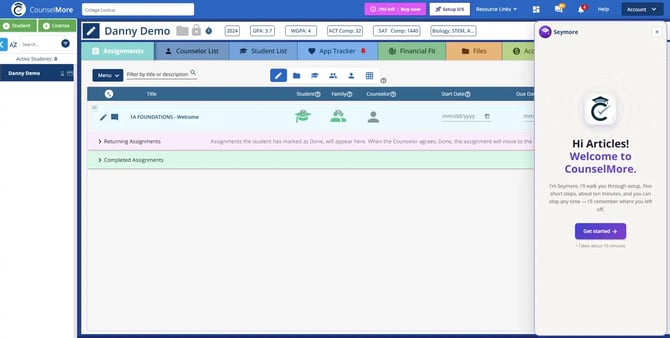
- Log in to your new account. The Seymore panel opens on the right side of your screen and welcomes you by name. Click Get started.
- The Account Setup panel opens with all five steps listed, a progress ring showing 0/5, and the first step expanded.
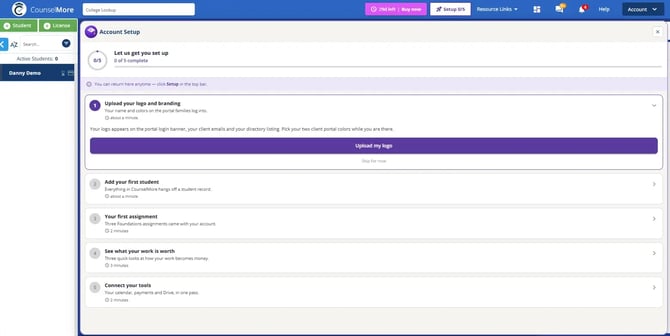
Each step shows a short description and how long it takes. The step you're on is expanded; the others stay collapsed until you reach them.
Tracking your progress
- The 🚀 Setup button in the top navigation bar shows how many steps you've finished (for example, Setup 2/5).
- Completed steps get a green checkmark, and the progress ring and bar in the panel update as you go.
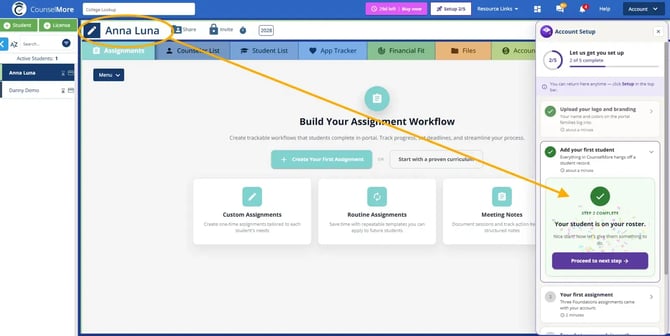
- After each step, a short completion card appears. Click Proceed to next step to continue.
Skipping a step or coming back later
- Click Skip for now under any step to move on without finishing it.
- Close the panel with the X at any time. To return, click Setup in the top navigation bar. Seymore picks up where you left off.
While you work through a step, the Setup panel stays open on the right side of the screen so you can follow along.
Step 1: Upload your logo and branding
Your logo appears on your client portal login page and your client emails.
- Click Upload my logo. CounselMore opens Settings > Account Setup > Client Portal Customizations, with the Client Portal Branding & Colors section expanded, and the Upload Your Logo window opens.
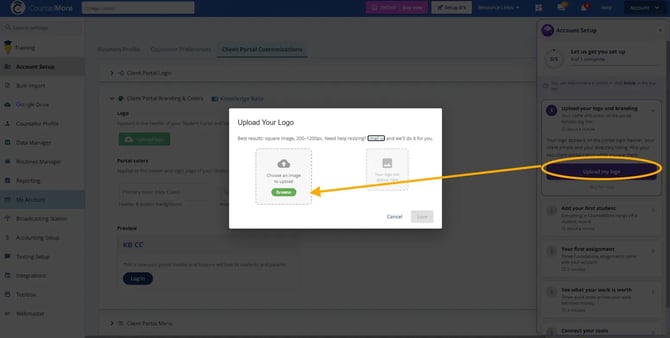
- Click Browse and choose your logo. For best results, use a square image between 200 and 1200 pixels. If you need help resizing it, click Email us in the window and the team will do it for you.
- Check the preview on the right, then click Save.
Your logo now shows in the Logo area and in the Preview of your portal header. You can swap it out later with Change logo.
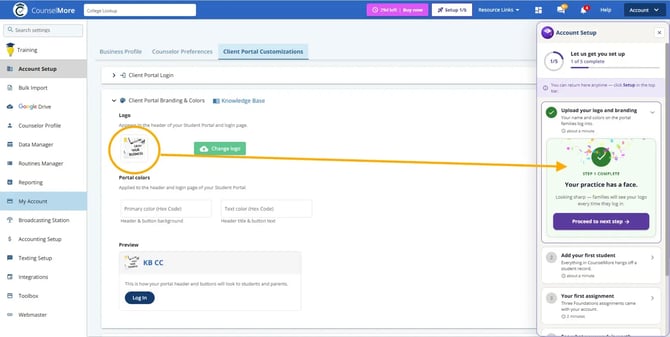
Optional — portal colors: while you're on this page, you can enter two hex color codes:
- Primary color — the header and button background
- Text color — the header title and button text
The Preview shows how the header and Log In button will look to students and parents.
Step 1 is marked complete once your logo is saved. For more branding options, see My Business - Branding the Student Portal.
Step 2: Add your first student
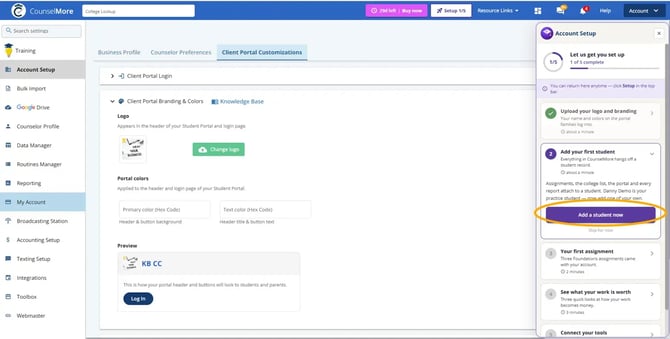
Everything in CounselMore — assignments, the college list, the portal, and reports — attaches to a student record. Your account comes with a practice student, Danny Demo; this step adds one of your own. (About a minute.)
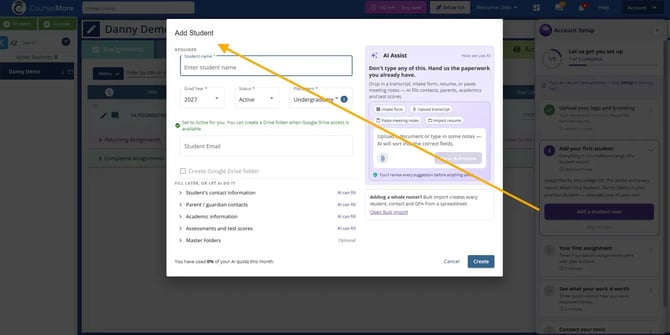
Click Add a student now to open the Add Student window. You can fill it in two ways.
Option A: Enter the details yourself
- Enter the Student name.
- Check the Grad Year, Status (set to Active for you), and Placement (for example, Undergraduate).
- Optionally, add the Student Email and tick Create Google Drive folder. You can create a Drive folder once Google Drive is connected (Step 5).
- Optionally, expand any section under Fill later, or let AI do it:
- Student's contact information
- Parent / guardian contacts
- Academic information
- Assessments and test scores
- Master Folders
- Click Create.
Option B: Let AI Assist fill it in
On the right side of the window, AI Assist reads the paperwork you already have and sorts it into the right fields — contacts, parents, academics, and test scores.
- Choose Intake form, Upload transcript, Paste meeting notes, or Import resume — or click the paperclip to upload a file, or type notes into the box.
- Click Parse & Preview.
- Review each suggestion. Nothing saves until you've checked it.
- Click Create.
The bottom of the window shows how much of your monthly AI quota you've used.
Adding a whole roster? Click Open Bulk Import in the window to create every student, contact, and GPA from a spreadsheet. See Bulk Import.
After you click Create
The new student opens in the center of the screen and appears at the top of your Quick List, and your Active Students count goes up by one. The Setup panel marks Step 2 complete.
Step 3: Your first assignment
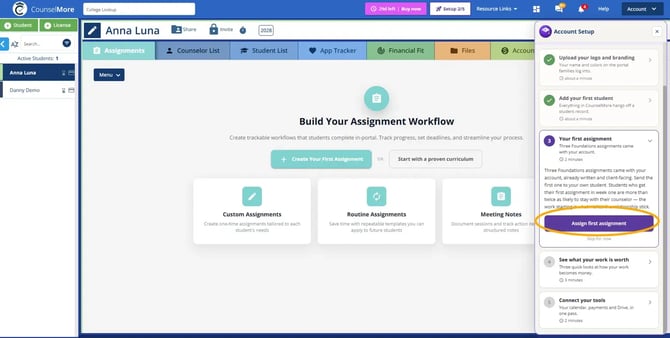
Every account comes with three Foundations assignments — already written and client-facing — so you can send your new student something right away. Students who get their first assignment in week one are more than twice as likely to stay with their counselor. (About 2 minutes.)
- Click Assign first assignment. The Routine Curriculum Menu opens.
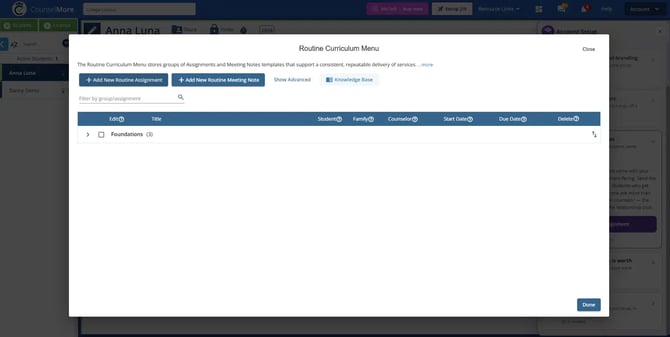
- Click the arrow next to Foundations (3) to see the three assignments:
- 1A FOUNDATIONS - Welcome
- 1B FOUNDATIONS - Client Relationship & Communication Protocols
- 1C FOUNDATIONS - Student Profile & Academic Context (Living Record)
- Tick the checkbox next to the assignment you want to send. A tag confirms it's been added to your student (for example, Added to Anna Luna). To add all three, tick the checkbox next to Foundations.
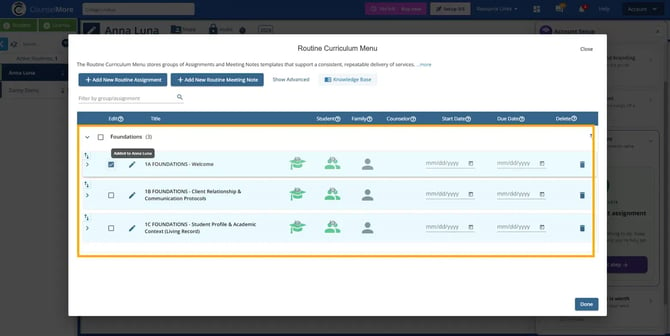
- Click Done.
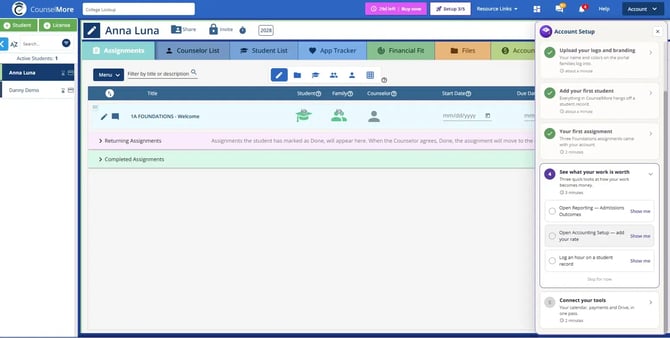
Step 3 is marked complete as soon as one assignment is added, and the assignment appears on the student's Assignments tab.
Prefer to write your own? In the same menu, click + Add New Routine Assignment or + Add New Routine Meeting Note to create a template you can reuse with future students. See Routine Assignments - Basics.
Step 4: See what your work is worth
This step is three quick looks at how your work turns into results and revenue. Each item has a Show me link that takes you to the right page. (About 3 minutes.)
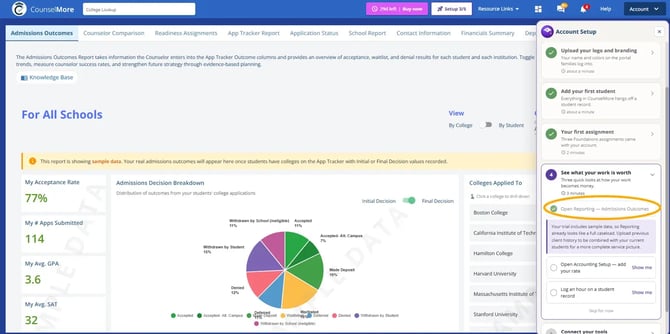
4a. Open Reporting — Admissions Outcomes
Click Show me to open Reporting > Admissions Outcomes. This item is checked off as soon as the page opens.
During your free trial, the report shows sample data so you can see what a full caseload looks like — acceptance rate, applications submitted, average GPA and SAT, a decision breakdown chart, and the colleges your students applied to. Your real outcomes appear once your students have colleges on the App Tracker with an Initial or Final Decision recorded.
Tip: Upload previous client history to combine it with your current students for a more complete picture. See Bulk Import.
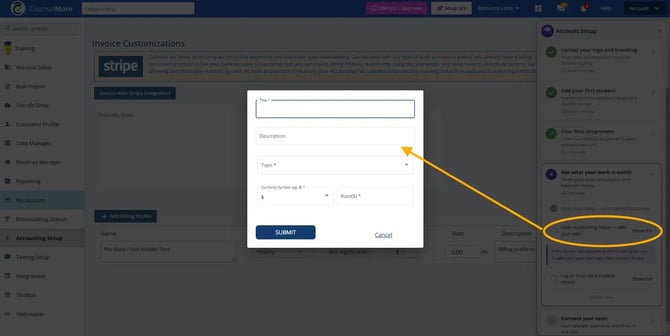
4b. Open Accounting Setup — add your rate
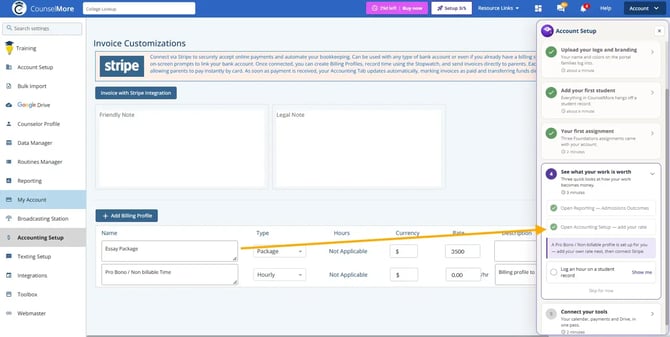
A Pro Bono / Non billable Time billing profile is already set up for you. Now add your own rate.
- Click Show me. CounselMore opens Settings > Accounting Setup and the billing profile window opens.
- Enter a Title (for example, Essay Package) and an optional Description.
- Choose a Type (for example, Hourly or Package), check the Currency Symbol, and enter the Rate.
- Click SUBMIT.
Your new profile appears in the billing profile list, and the item is checked off.
4c. Log an hour on a student record
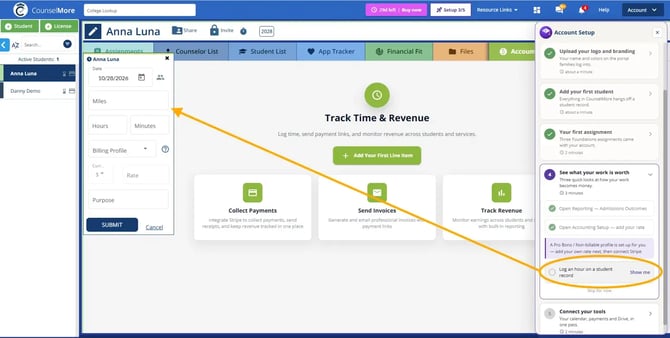
- Click Show me. Your student's Accounting tab opens with the time entry form.
- Check the Date, and enter the Hours and Minutes (and Miles, if you track travel).
- Choose a Billing Profile — the Rate fills in from it — and add a Purpose if you like.
- Click SUBMIT.
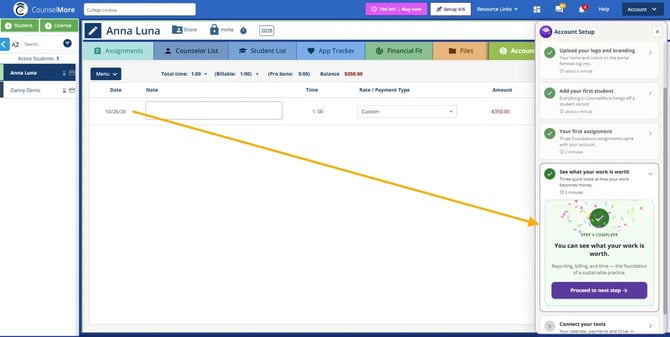
The entry appears on the Accounting tab with its amount, and the summary bar updates your total time, billable and pro bono hours, and the student's balance. Step 4 is marked complete.
For more on billing, see Self Guided #7 - Accounting Profiles & Time Tracking.
Step 5: Connect your tools
The last step connects your payments, Google Drive, and calendar. Like Step 4, it has three items, each with a Show me link. (About 2 minutes.)
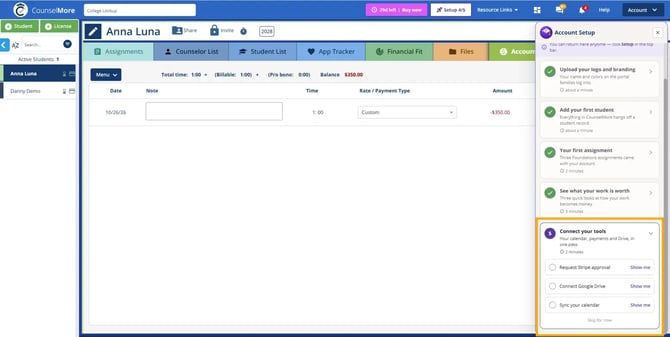
5a. Request Stripe approval
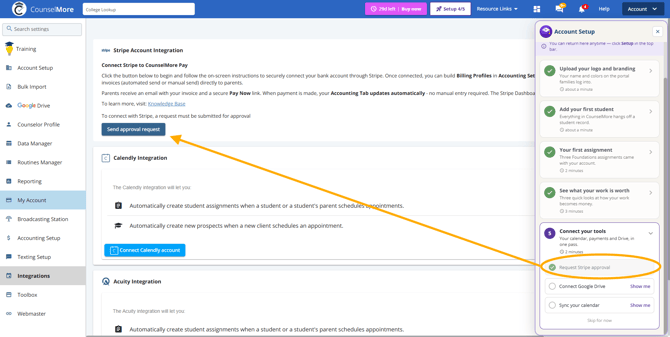
Click Show me to open Settings > Integrations. At the top, the Stripe Account Integration section explains how CounselMore Pay works: once Stripe is connected, parents receive invoices with a secure Pay Now link, and your Accounting tab updates automatically when they pay.
Stripe needs approval before you can connect it. Click Send approval request to start.
For details, see How do I accept payments through CounselMore?
5b. Connect Google Drive
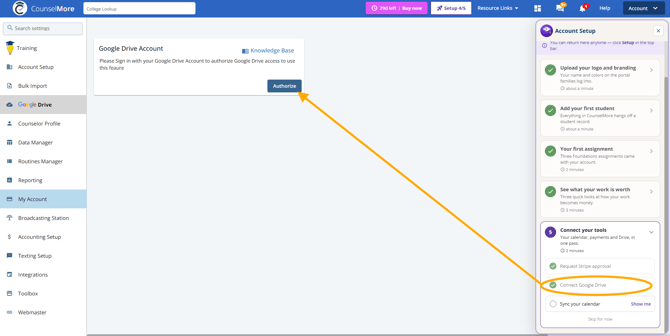
- Click Show me to open Settings > Google Drive.
- Click Authorize and sign in with the Google account you want to use with CounselMore.
For details, see Self Guided #4 - Google Drive Prep & Connect.
5c. Sync your calendar
- Click Show me to open the Calendly Integration and Acuity Integration sections in Settings > Integrations.
- Click Connect Calendly account or Connect Acuity account, depending on which scheduling app you use.
Once connected, new appointments can automatically create student assignments and new prospects in CounselMore.
For details, see Self Guided #6 - Scheduling & Calendar Connections.
Finishing the tour
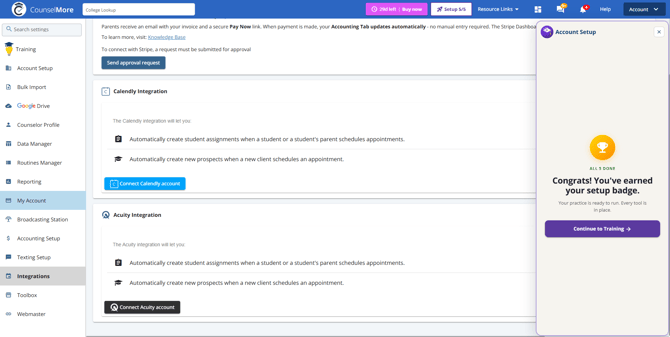
When all five steps are done, the Setup button reads Setup 5/5 and Seymore shows an All 5 done message: you've earned your setup badge and your practice is ready to run.
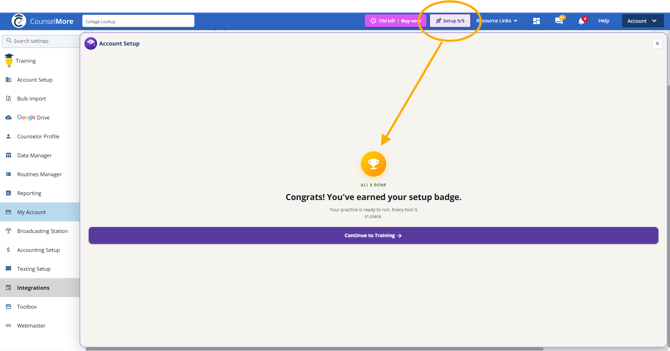
Click Continue to Training to keep learning. You can reopen this screen any time by clicking Setup 5/5 in the top navigation bar.
If you skipped any steps, they stay open in the Setup panel. Click Setup in the top navigation bar to finish them whenever you're ready.
- Seymore - AI Assistant, Help Chatbot, Ask a Question, Tech Support, Professional Forum
- WELCOME New Accounts: Start Here
- My Business - Branding the Student Portal
- Student Profile - Add a Student Record & Parent Contact
- Add Student Using AI Assist to Import Student Data
- Routine Assignments - Basics
- Self Guided #7 - Accounting Profiles & Time Tracking
- Self Guided #4 - Google Drive Prep & Connect
- Self Guided #6 - Scheduling & Calendar Connections