
Step 1: Open the Add Student window
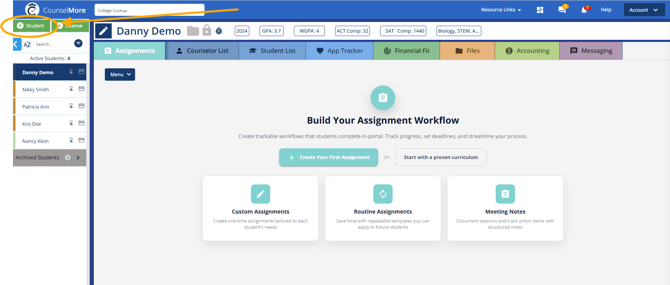
- Click the green + Student button at the top of your Quick List.
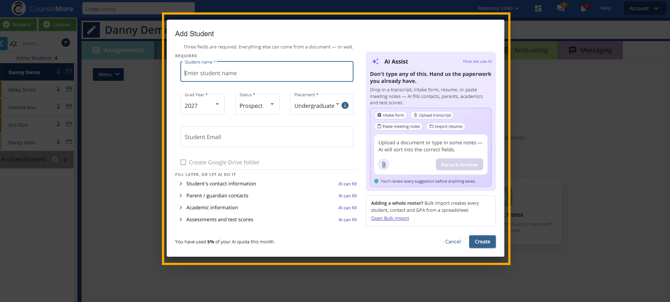
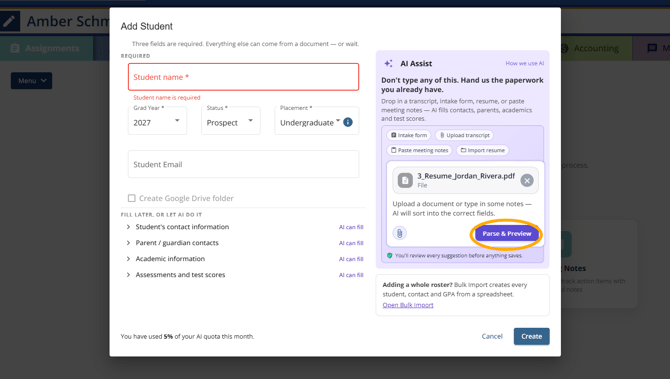
- In the Add Student window, AI Assist is the purple panel on the right.
Step 2: Add your document or notes
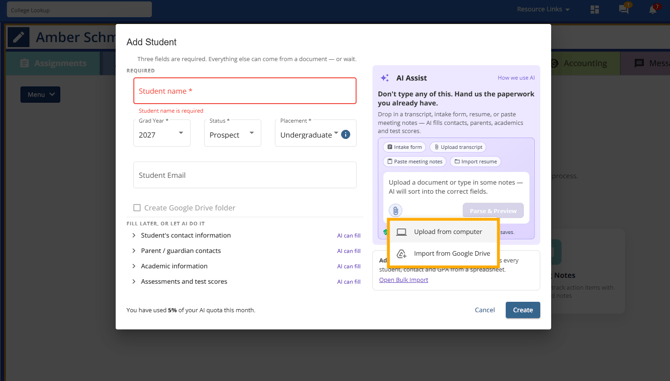
Upload a file (from your computer or Google Drive) or type/paste notes into the AI Assist box. You don't need to type the student's name first — AI fills it in from the document.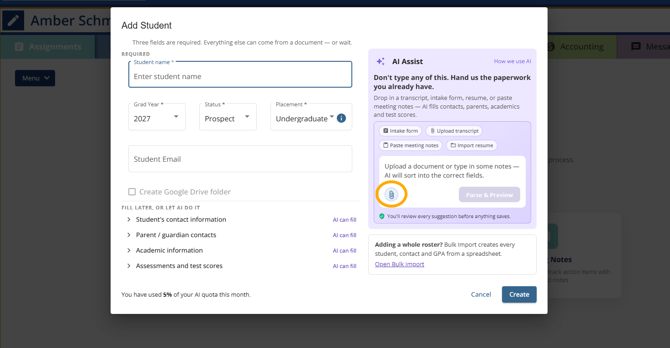
Documents you can use:
- Intake forms
- Transcripts
- Resumes
- Meeting notes — paste or type them straight into the box
Files can be PDF or Word documents.
Step 3: Parse & Preview and review the results
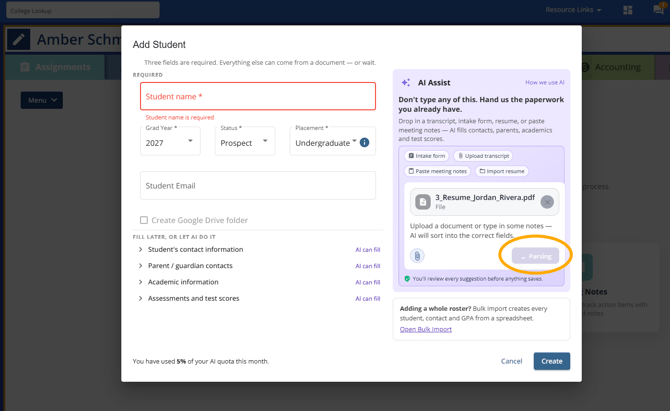
- Click Parse & Preview. The button changes to Parsing while AI reads your document.
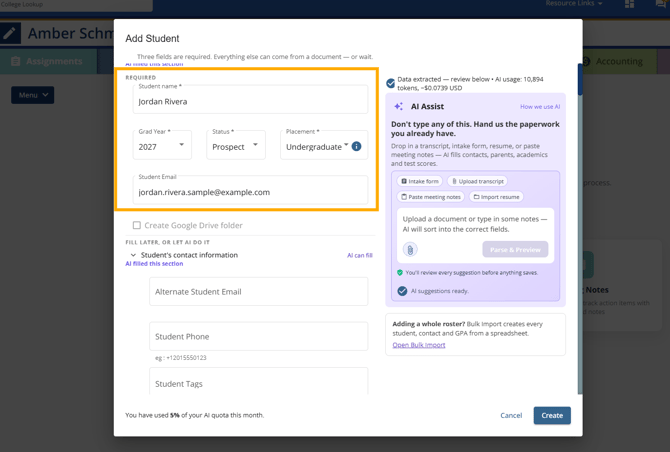
- When it's done, you'll see Data extracted — review below at the top (along with the AI usage for that parse), and AI suggestions ready in the AI Assist panel. Nothing has been saved yet.
- Scroll down the window and review what AI filled in:
- Required fields — student name, grad year, status, placement, and email.
- Sections tagged "AI filled this section" — for example, the student's contact information (alternate email, phone, tags) and academic information (high school, GPAs).
- Structured fields extracted by AI (marked Review) — course planning, fit assessments, test scores (SAT, ACT), AP courses, and awards and honors.
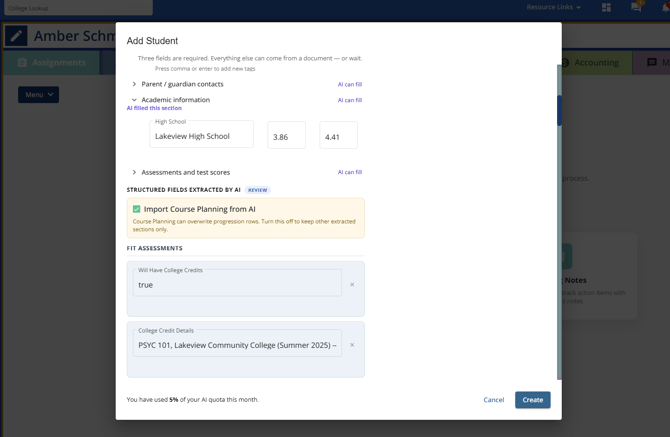
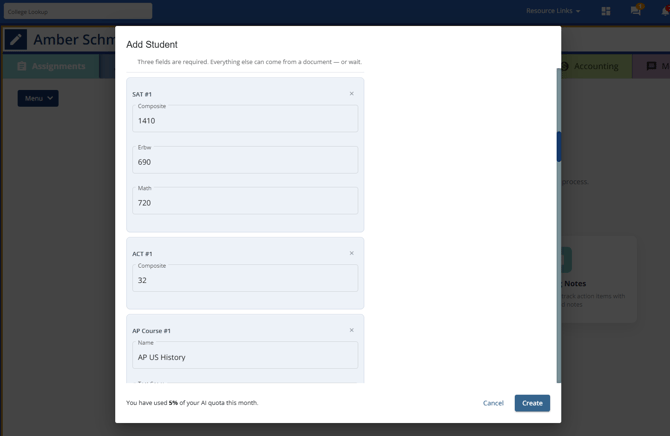
- Fix anything that's wrong by clicking into the field and editing it. To leave an item out, click the X on its card.
Step 4: Create the student and check the profile
- When everything looks right, click Create.
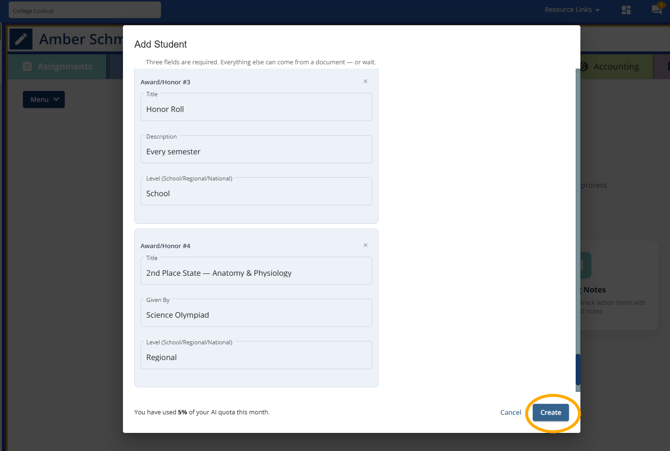
- The new student is added to your Quick List, and their profile (Candidate Application Prep) opens with the parsed data saved to the banners. The header also shows key details AI pulled in — for example, grad year, GPA, weighted GPA, and ACT and SAT composites.
- Open each banner to check the saved data — for example, Student Information for name, email, and placement.
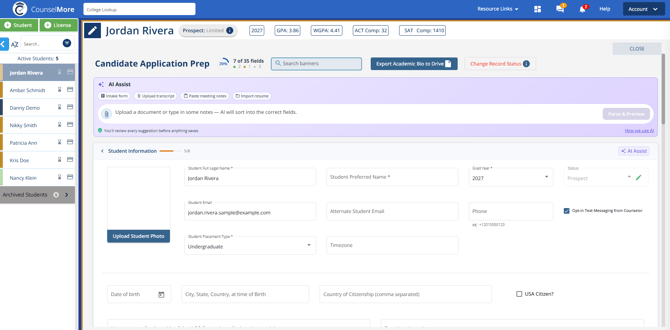
You can run AI Assist again later from the top of the student's profile, or from the AI Assist button on any banner, to add more information from another document.
AI quota
Each parse uses part of your monthly AI quota. The bottom of the Add Student window shows how much you've used this month (for example, You have used 5% of your AI quota this month), and the results banner shows the usage for each parse. To learn how CounselMore uses AI, click How we use AI in the AI Assist panel.