
What Seymore can do
- Build a balanced college list through a short guided conversation. Seymore uses what's already on the student's profile, such as their Bio Banners and assessments, and only asks for what's missing.
- Choose how fit is judged: CounselMore Network, Your students or Admit rates. Seymore marks the best option for the student as Recommended, and you can still pick another.
- Apply filters such as sports, test-optional, selectivity, financial aid, net cost, HBCU, women's colleges, accessibility, Greek life or a specific major. If the filters are too tight, Seymore tells you which ones and asks which to relax.
- Balance and refine the list: click Ask Seymore to help under the List Balance grade, or ask Seymore to add, remove or swap schools by name or by attribute.
- Analyze each school: click VIEW IQ next to a school to see how the student compares with students admitted there.
- Work with the list: move schools, add notes, links and tags, check majors, fill in custom columns and export.
- Answer questions about CounselMore and look up college facts that aren't in our data.
Before you start: turn on OutcomesIQ
Note: To get the most out of Seymore, turn on OutcomesIQ in your Settings.
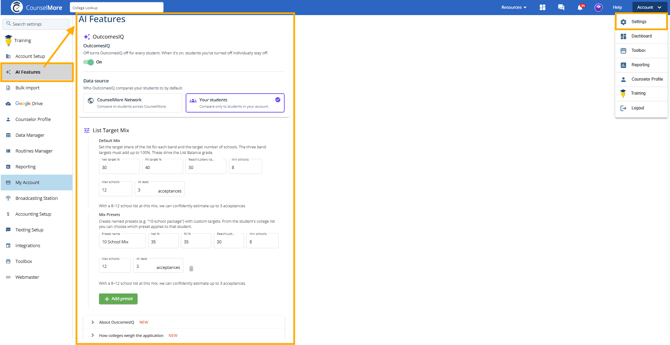
Go to Settings > AI Features.
- Under OutcomesIQ, switch the toggle on and choose the default Data source: CounselMore Network or Your students. Turning OutcomesIQ off turns it off for every student. You can also turn it on for a single student from that student's Counselor List or Student List.
- Under List Target Mix, set your Default Mix: the target share for each band (Net, Fit and Reach/Lottery, adding up to 100%), the minimum and maximum number of schools, and how many acceptances to aim for. Seymore uses this mix when it builds a list, and it drives the List Balance grade.
- Click Add preset to save named mixes (for example, a 10-school package). You can then choose which preset applies to each student from their college list.
Build a college list
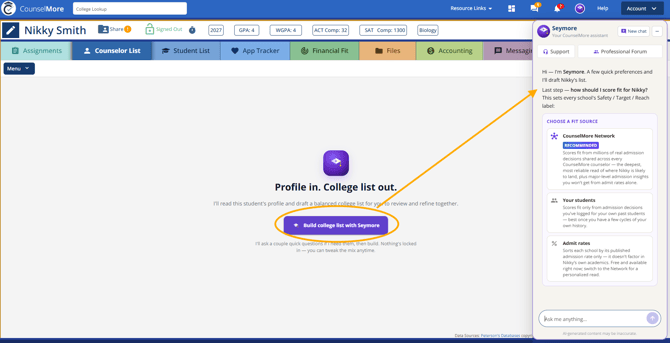
When a student doesn't have a college list yet, open the student's Counselor List and click Build college list with Seymore. Seymore reads the student's profile, asks a couple of quick questions only if it needs them, and drafts a balanced list for you to review and refine. Nothing is locked in, so you can change the mix anytime.
The Seymore chat opens on the right. The questions depend on what the student has already filled in on their profile. For a student with nothing filled in yet, Seymore asks:
- What the student hopes to study. Click one or more suggested majors, choose Still exploring, or type another major in the Add another major box. Then click Continue.
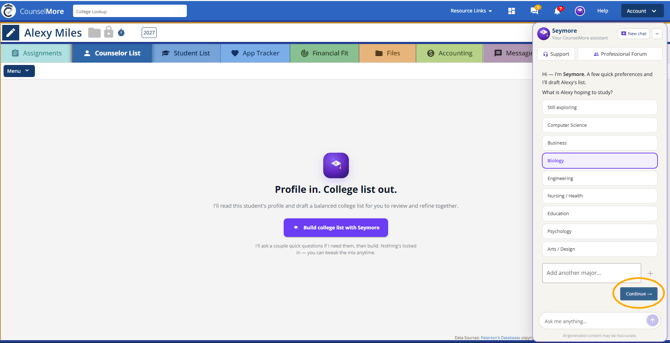
- Which region the student is drawn to. Pick a region or choose No preference, then click Continue.
- The student's home state. Choose it from the dropdown and click the arrow.
-
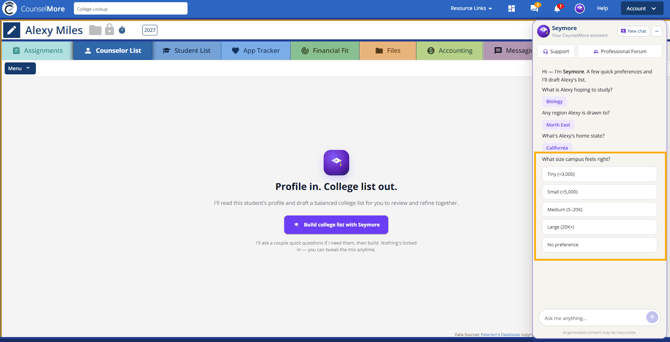
What size campus feels right. Pick one or more sizes, from Tiny to Large, or choose No preference. Then click Continue.
-
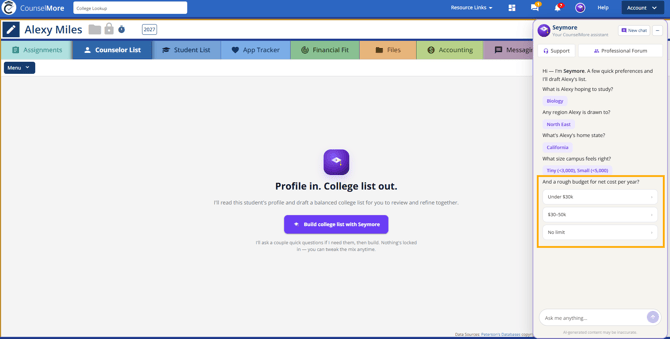
A rough budget for net cost per year. Click a budget range or No limit.
-
How to score fit. This last step sets each school's fit label. Choose Admit rates, CounselMore Network or Your students. Seymore marks the best option for the student as Recommended. CounselMore Network and Your students need the student's academic profile, so they stay locked until it's added. Admit rates works right away. If OutcomesIQ is off in your Settings, Admit rates is always the Recommended option.
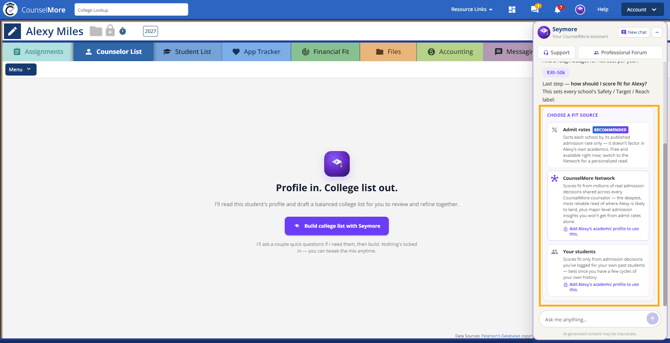
Once you choose a fit source, Seymore searches the college database to build the list. Your answers stay in the chat above so you can see what the list is based on.
When the list is ready, the schools are added to the Counselor List automatically, each with a Fit label (Net, Fit, Reach or Lottery). In the chat, Seymore explains what the bands are based on, points out anything worth a second look, and offers ways to adjust the list. If the student's preferences leave very few matching schools, Seymore tells you which ones are narrowing the search and asks which to relax. It doesn't loosen them on its own.
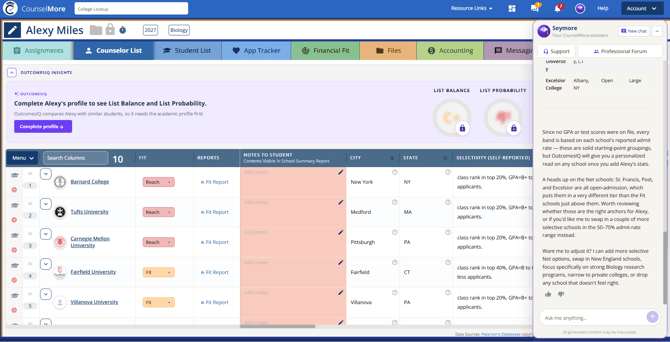
If the student's academic profile isn't complete, the OutcomesIQ Insights panel above the list shows List Balance and List Probability as locked. Click Complete profile to fill in the required academic profile and unlock them.
Reference: OutcomesIQ needs five fields before results load: unweighted GPA, an SAT or ACT score (a goal score works if the student hasn't tested), classes per subject, two distinct activities, and at least three self-assessment answers. Intended major is optional. You can type these in or have AI read a transcript, resume or notes, then review before saving. See What Is OutcomesIQ? for details.
If the profile is complete (major, home state, test scores and fit assessments filled in), Seymore skips the preference questions and goes straight to choosing a fit source. All three options are available, and CounselMore Network is marked Recommended for the most personalized read, as long as you've joined the CounselMore Network. On multi-counselor accounts, the admin turns on Network access for counselor licenses in Team settings.
Review the list with OutcomesIQ Insights
With a complete profile, the OutcomesIQ Insights panel above the list is fully unlocked:
- List Balance grades the list against your target mix and tells you what to add. An A+ means no changes are needed; a B or C means fixes are recommended.
- List Target Mix shows how many Net, Fit and Reach/Lottery schools the list has against your targets. Click the pencil to change the targets.
- List Probability estimates whether the student is likely to be admitted to enough schools to meet the acceptance goal in your target mix. A thumbs up means the list is ready to promote. A thumbs down prompts Seymore to suggest ways to strengthen the list.
- The OutcomesIQ column shows three acceptance rates side by side: the college's published rate, the rate across all CounselMore students (or your own students), and the OutcomesIQ rate for students with this profile.
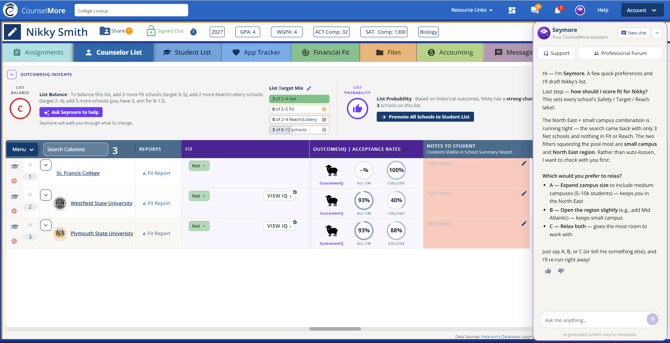
Click VIEW IQ next to a school for a detailed report. It opens with a Seymore AI Analysis of how the student compares with students admitted there, and shows your Fit rating next to the OutcomesIQ rating so you can see whether they agree. The tabs (Acceptance, Deadlines, Academics, Beyond the numbers and Also accepted at) give more detail, and you can promote the school or see swap-out recommendations from the same page.
To learn how OutcomesIQ compares your student with similar students, see What Is OutcomesIQ?
Balance the list with Seymore
Click Ask Seymore to help under the List Balance grade. Seymore works on balancing the list to your target mix. It lists the schools it wants to add or remove, explains why, and shows what the list will look like afterward: the new mix, the grade and the chance of meeting your acceptance goal. It also reminds you that the grade is a guideline and your judgment has the final word.
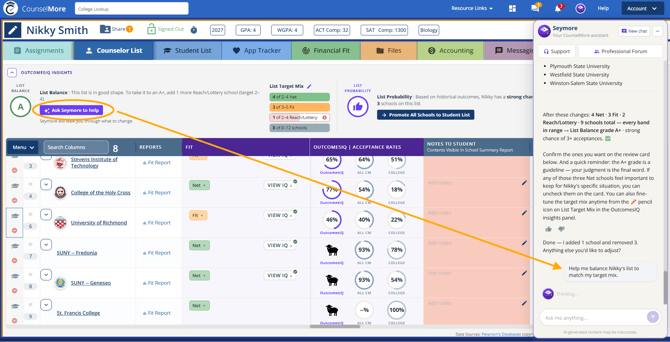
The review card lists each proposed change with a checkbox. Uncheck any you don't want, then click Apply changes, or click Cancel to leave the list as it is. If Seymore can't find a new school that fits, it tells you and offers to widen the search, for example by opening up the region or campus size.
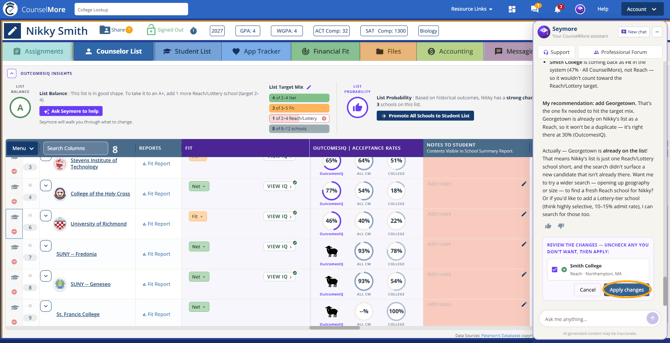
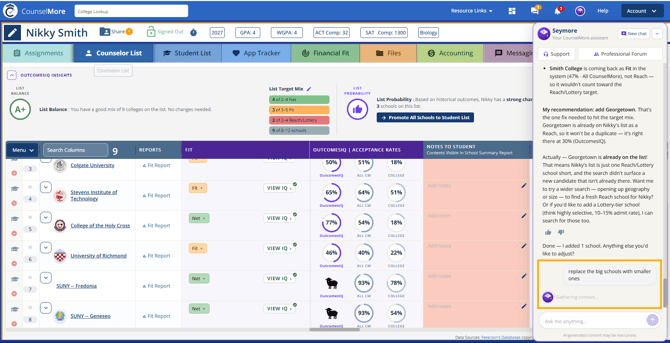
After you click Apply changes, a message at the top confirms each school added, and Seymore confirms the change in the chat. The List Target Mix counts update right away, and List Balance and List Probability recalculate.
Refine the list
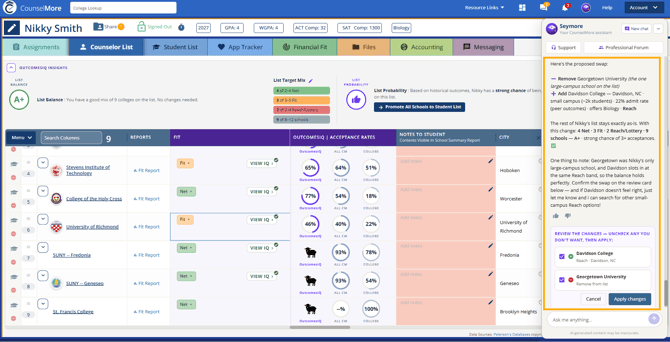
Ask Seymore to change the list in plain words at any time, for example "replace the big schools with smaller ones" or "add two less selective schools." Type your request in the chat box.
Seymore finds the schools that match your request on its own, so you don't need to name them. It proposes changes that keep the list balanced, explains how the list will look afterward, and shows a review card with each school to add or remove. Uncheck anything you don't want, then click Apply changes, or click Cancel. If the suggestion doesn't feel right, ask Seymore for other options.
Promote schools to the Student List
When you're happy with the list and List Probability shows a thumbs up, click Promote All Schools to Student List to share every school with the student at once. From the Student List, you can then promote schools to the App Tracker. To promote one school, click VIEW IQ next to it and click Promote to Student List, or ask Seymore (see the example below).
Reference: For step-by-step details on promoting schools to the Student List and the App Tracker, see the Promoting schools section of What Is OutcomesIQ?
Work with the list
Once a list is built, you can make changes just by asking Seymore in the chat. Type what you want in plain words, and Seymore shows a card for you to confirm before anything changes. Ask Seymore to:
- Move schools between the Counselor List, the Student List and the App Tracker.
- Add college notes, notes to the student or research notes, or copy notes from one column to another.
- Add links, including finding an official page for every school on the list (for example, each school's men's soccer page).
- Tag schools, reusing your existing tags.
- Check which schools offer a major.
- Fill in your custom columns.
- Export to Excel, a summary PDF or a fit-evaluations report.
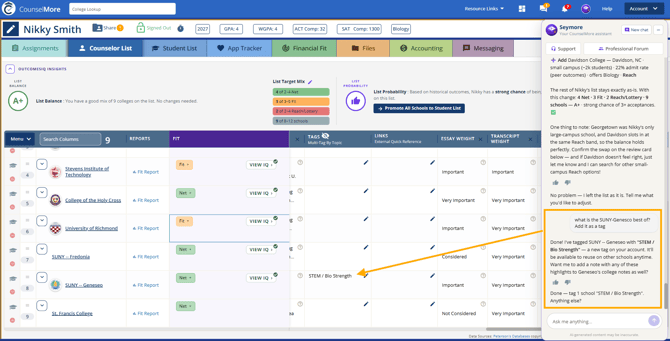
Example: tagging a school. You can combine a question and an action in one request, for example "What is this school best known for? Add it as a tag." Seymore answers and shows a card for you to confirm the tag. Once you apply it, Seymore adds the tag to that school's Tags column and saves it as a new tag on your account, so you can reuse it on other schools. It may also offer a next step, such as adding the highlights to the school's college notes.
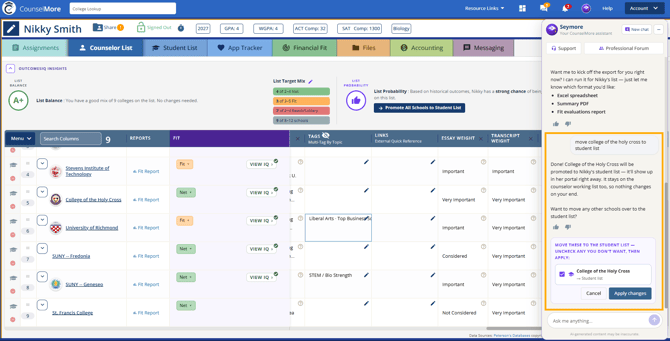
Example: moving a school to the Student List. Ask something like "Move [school name] to the student list." Seymore shows a Move these to the Student List card. Uncheck any school you don't want, then click Apply changes. A message confirms the move, and the school shows up in the student's portal right away. It also stays on your Counselor List.
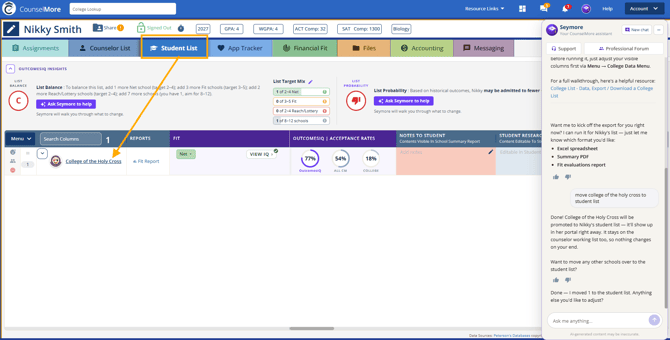
Open the Student List tab to see the school there. The Student List has its own OutcomesIQ Insights panel, so its grade and probability reflect only the schools on that list.
Answer questions
- How-to questions about CounselMore. Seymore answers with steps and a link to the help article, and may offer to do the task for you.
- College facts that aren't in our data. Seymore looks them up and cites the school's official site or Common Data Set.
Example: asking a how-to question. Ask something like "How do I export my college list?" Seymore gives step-by-step instructions for each list, adds useful details (such as where the file goes and how to choose which columns are included), and ends with a link to the help article. It can also offer to run the export for you as an Excel spreadsheet, summary PDF or fit evaluations report.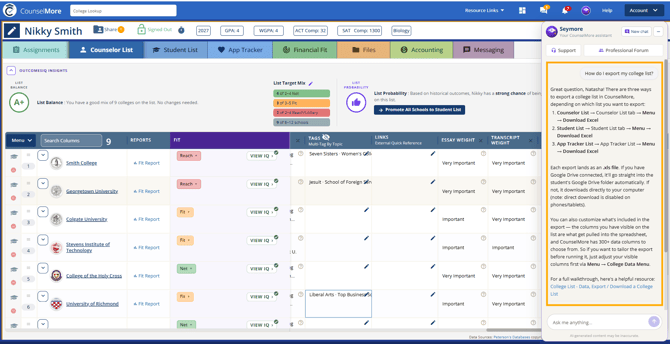
Good to know
- Seymore shows you a card to confirm before it changes your list, notes, tags, links or columns. Nothing changes until you apply. The exception is building a list on an empty Counselor List, where the schools are added right away.
- Seymore never overwrites built-in data like admit rates. If you ask it to change one, it offers to open the data correction form, where you enter the corrected value and a source URL and click Send, or to put the number in a custom column instead.
- New text in a custom column or a note is added below what's already there. Seymore never replaces it.
- How-to questions are free. Actions such as building, editing or exporting count toward your AI allowance.
- Seymore is for counselors only. Students don't see it or its recommendations.
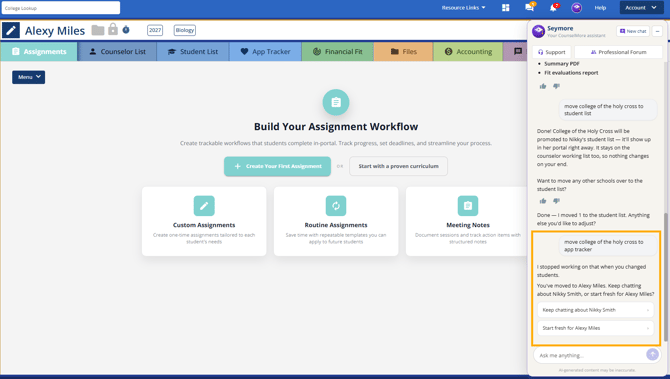
- If you open a different student while Seymore is working, it stops and asks whether to keep chatting about the first student or start fresh for the new one. It never carries on with the wrong student.
Reaching your AI limit. Each turn where Seymore takes an action (building or refining a list, moving schools, adding notes, tags or links, exporting, checking majors or looking something up on the web) counts once toward your AI allowance, even if it uses several tools in that turn. How-to questions about CounselMore are always free. If you've used up your allowance, Seymore still answers how-to questions, but it won't build or change anything. Instead, it lets you know the allowance is used up and suggests upgrading your plan.
Related articles
- What Is OutcomesIQ?
- College List - Data, Export / download a College List
- College Data - Submit Data correction
- My Lists, My Database: Tags, Notes, Starter Lists
- New Accounts - College List - Promote Schools to Student List View