
OutcomesIQ: Your Evidence-Based College List Builder
The goal:
Move from "this feels right" to "this is evidence-backed."
Turning on OutcomesIQ
The first time you log in after OutcomesIQ launches, an OutcomesIQ pop-up opens once. It shows a short intro video and how students like yours compare to all applicants. Click Get access.
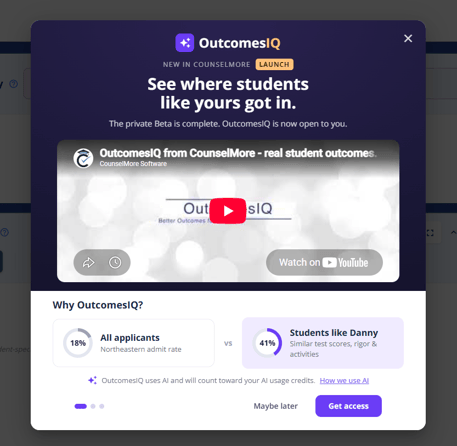
- Review what you share and what you get: you share your past students' outcomes, and you get outcomes from counselors across the CounselMore community. Shared data is anonymized, never sold, and stays in CounselMore.
- Tick I agree to share anonymized outcome data. Pooled records can't be removed. Click Full terms to read the details.
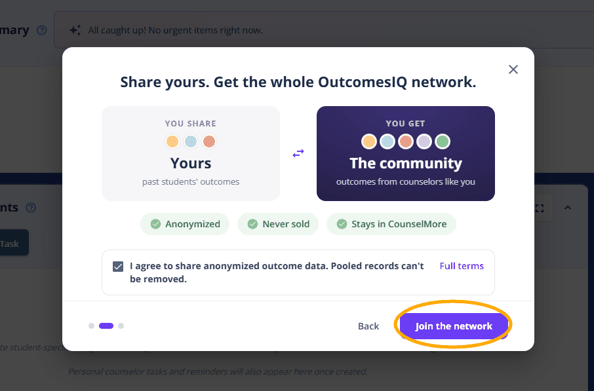
- Click Join the network. A confirmation appears, and OutcomesIQ, including the CounselMore Network, is turned on right away.
Not ready yet? Click X or Maybe later to close the pop-up without turning OutcomesIQ on.
Turning it on later
If you closed the pop-up, you can turn OutcomesIQ on at any time from either place below. The same pop-up opens; click Get access and Join the network to finish.
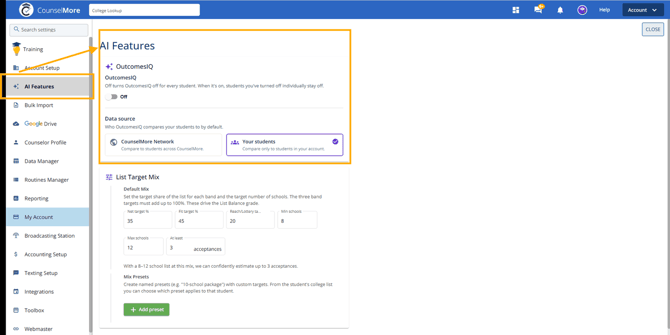
- Settings > AI Features, then switch on the OutcomesIQ toggle.
- A student's Counselor List or Student List, then click Turn on OutcomesIQ.
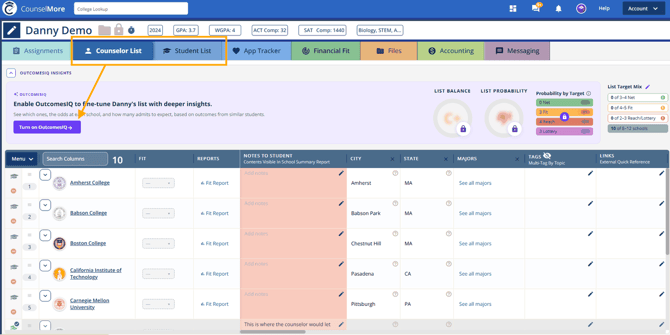
Once you've joined, you won't see the pop-up again. You can turn OutcomesIQ off and on from Settings or from the list without the pop-up.
OutcomesIQ settings
Go to Settings > AI Features:
- OutcomesIQ: turning this off turns OutcomesIQ off for every student. When it's on, students you've turned off individually stay off.
- Data source: who OutcomesIQ compares your students to by default, CounselMore Network or Your students.
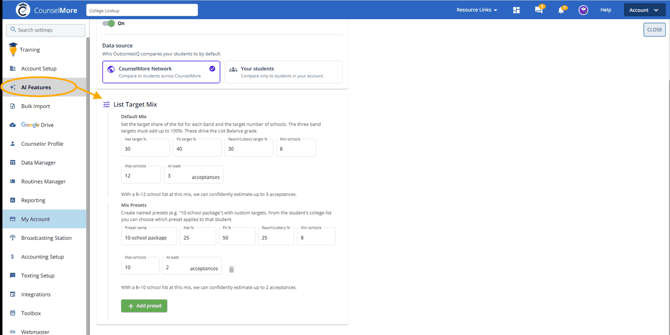
- List Target Mix: the mix of schools your college lists are graded against. Set the target share of Net, Fit and Reach/Lottery schools (they must add up to 100%), the minimum and maximum number of schools, and how many acceptances to aim for. You can also save named presets, such as a "10-school package," to use for different students. These targets drive the List Balance grade and List Probability. More details are in Customizing the target mix below.
- About OutcomesIQ and How colleges weigh the application: quick answers to common questions about OutcomesIQ data and how colleges weigh each part of an application. Both are collapsed until you open them.
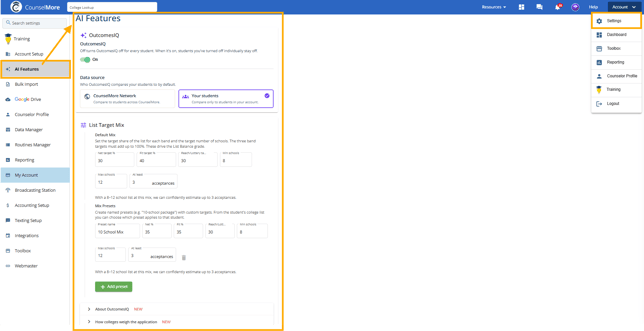
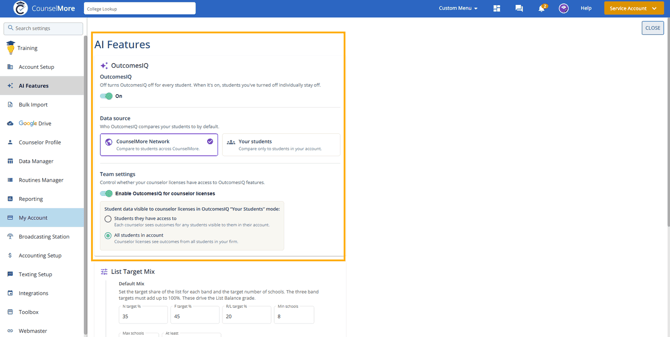
Multi-counselor accounts. The account admin sees Team settings:
- Enable OutcomesIQ for counselor licenses controls whether counselor licenses can use OutcomesIQ.
- When it's on, choose what counselor licenses see in Your students mode: Students they have access to, or All students in account.
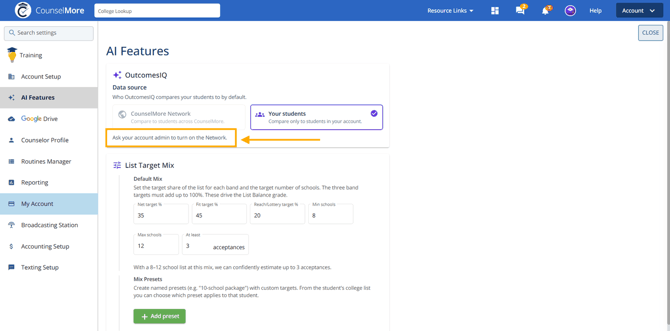
If OutcomesIQ isn't enabled for a counselor license, that counselor sees "Ask your account admin to turn on the Network" in Settings and "Request access from your admin to use OutcomesIQ" on the college list.
To get the most out of OutcomesIQ, update your historical student records to the best of your ability. You can update your records in bulk using the Bulk Import Student Information process, or update individual student records using AI Assist.
Overview:
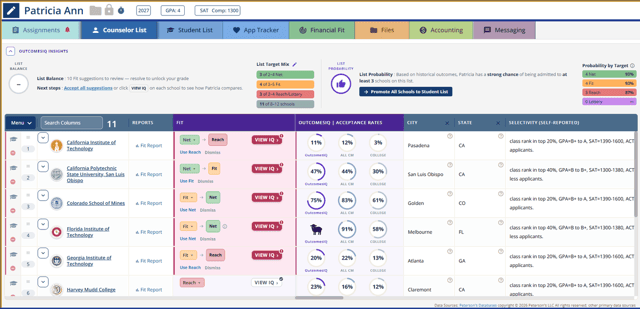
In the College lists, use your professional instinct to evaluate Campus Fit.
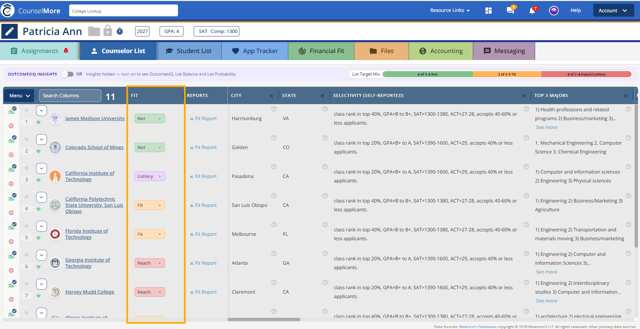
THEN > Turn on OutcomesIQ Insights to check your instinct against all previous students who also applied to the same school - sorted by applicants, who are most similar in academic and biography as your current student profile.
Tip: Keep each student’s high school information up to date. OutcomesIQ looks at outcomes from students at the same high school, so accurate high school details give you better comparisons.
Getting Started: Opening OutcomesIQ
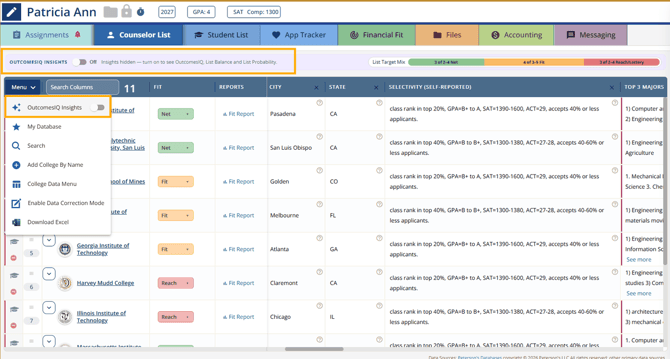
- Open a student's college list (either the Counselor List or Student List tab — OutcomesIQ works the same on both).
- Switch on the OutcomesIQ Insights toggle at the top of the list, or open Menu and switch on OutcomesIQ Insights. When it's off, the bar reads "Insights hidden." Click the arrow next to OutcomesIQ Insights to collapse or expand the panel.
If you're asked to update the student's profile first
If the student's bio banner isn't complete yet, the OutcomesIQ Insights panel shows Complete profile. Click it to open the Update Student Profile form instead of loading results.
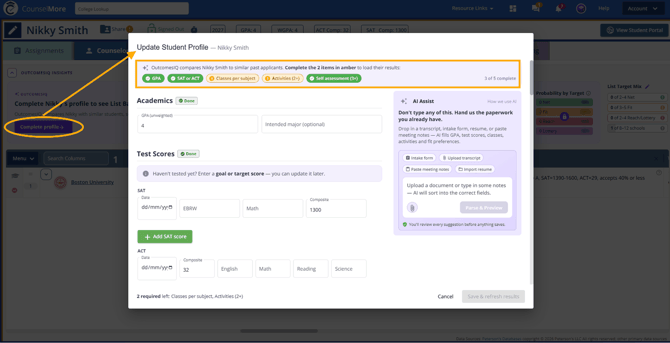
Required fields
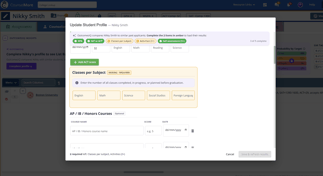
The banner at the top of the form shows five required fields. Completed fields are green with a checkmark, and missing fields are amber, and the counter on the right shows your progress (for example, 3 of 5 complete). In the form, sections that still need information are highlighted in amber with a tag such as MISSING · REQUIRED, and finished sections show Done.
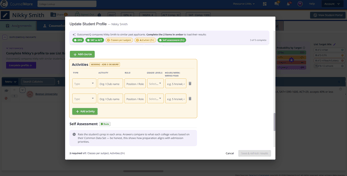
Why OutcomesIQ asks for these fields
OutcomesIQ finds past applicants who are most similar to your student, then shows how those students did at each school. It can only match students on information it has. That's why these five fields must be filled in before results can load:
| Required field | Why it's required |
|---|---|
| GPA (unweighted) | GPA is one of the core matching factors. Without it, OutcomesIQ can't compare your student's academic record to past applicants. |
| SAT or ACT | Test scores are a core matching factor. If the student hasn't tested yet, enter a goal or target score so a comparison can still be made, then update it later. |
| Classes per subject | Years of coursework in each core subject show course rigor. This separates a student with 4 years of math and science from one with 2, even when their GPAs are the same. |
| Activities (2 distinct) | Activity overlap is used to find students with similar interests and involvement. At least two activities are needed to make that comparison meaningful. |
| Self assessment (3+) | Self-assessment answers capture the student's priorities and fit preferences. At least three answers are needed for this to count in the match. |
Intended major is optional. Adding it helps OutcomesIQ match students interested in the same field.
You have two easy ways to fill in the gaps:
- Let AI do it for you — paste in or attach a transcript, resume, meeting notes, or similar document, and click Parse & Preview. Nothing saves until you've reviewed and approved it. If you upload more than one document, such as a transcript and a resume, check the AP / IB rows in the preview for the same course listed twice under different names. Keep one row and fill in its score and date before you click Create.
- Enter it yourself — fill in GPA, test scores, classes per subject, activities and self assessment directly.
- The Save & refresh results button stays grayed out until all required fields are filled out. Once everything is complete, the button is enabled and the banner reads "All set — save to load their results." Click it to save. You'll see "Profile updated. OutcomesIQ refreshed." Then switch on the OutcomesIQ Insights toggle at the top of the list to load the results.
Choosing where the data comes from
You can choose which data source OutcomesIQ uses. Go to Settings > AI Features > Data source and select CounselMore Network (compare to students across CounselMore) or Your students (compare only to students in your account). The VIEW IQ report shows which one is in use ("Powered by CounselMore Network").
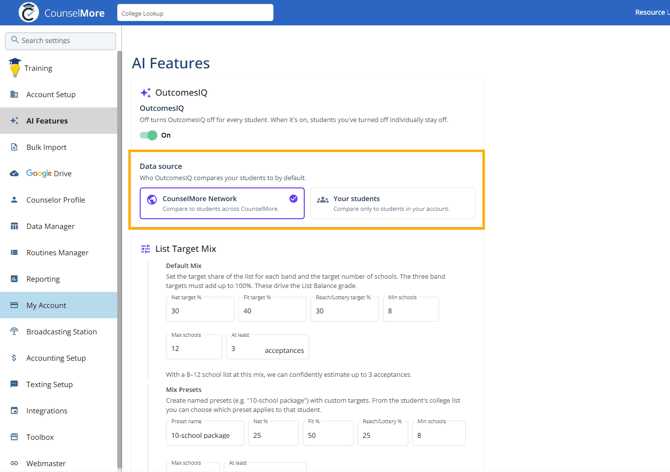
Your students
This compares the student only to your own past students. It's the most personal, most relevant comparison — but it depends on how many past outcomes you've logged. When you don't have enough of your own data for a school:
- The OutcomesIQ rate shows a black sheep, and the YOUR STUDENTS rate shows --%.
- List Probability and Probability by Target can't be calculated. List Probability tells you how many schools on the list have enough data (for example, "enough data for 4 of 11 schools") and shows Add data to calculate probability.
Adding more of your past students and their outcomes fills these in. You can also switch to the CounselMore Network for a larger pool.
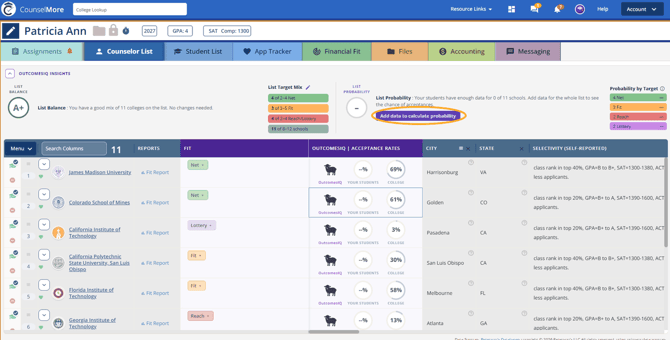
Clicking Add data to calculate probability opens an Import Students window where you can upload past records all at once:
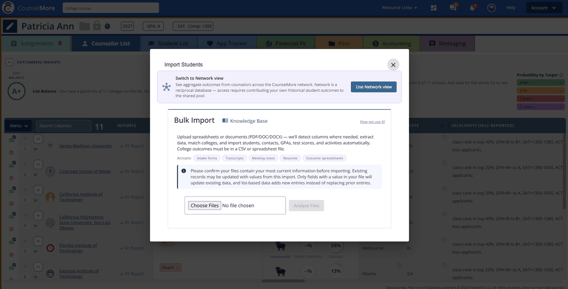
At the top of the window, click Use Network view to switch to outcomes from counselors across the CounselMore network instead.
- Upload spreadsheets, PDFs, or Word docs — intake forms, transcripts, meeting notes, resumes, or outcome spreadsheets all work. (College outcomes specifically need to be in a spreadsheet or CSV.)
- The system reads the files and fills in students, GPAs, test scores, activities, and outcomes automatically.
- It's safe to import over existing records: only fields with new information get updated, and nothing you've already entered gets erased.
Network
This compares the student against outcomes shared by counselors across CounselMore.
The OutcomesIQ Insights panel
At the top of the list, the OutcomesIQ Insights panel shows, at a glance, whether the student's list has a healthy mix of schools and how likely the student is to get in. It has four parts.
List Balance
- If OutcomesIQ disagrees with one of your Fit ratings, the grade shows as pending ("–") with a note telling you how many suggestions to review before a grade can be shown. Click Accept all suggestions to accept every one at once, or click VIEW IQ on each school to review them one by one.
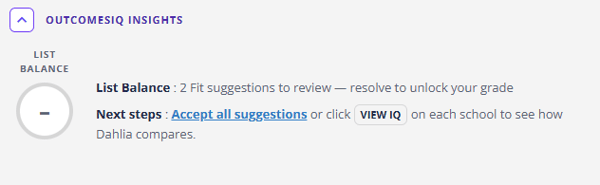
- Once everything's resolved, you'll get a letter grade
| Grade | What it shows |
|---|---|
| A+ (green) | A good mix. No changes needed, so the Ask Seymore button doesn't appear. |
| A (green) | The list is in good shape, with a note on how to reach A+. |
| B (orange) and C (red) | The fixes to make, such as adding or swapping schools, plus Ask Seymore to help. |
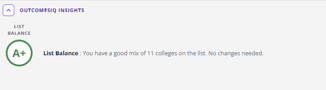
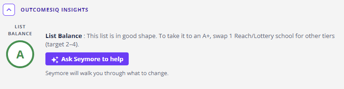
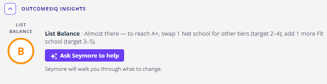
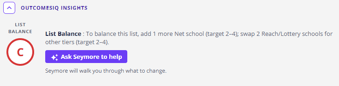
Ask Seymore to help
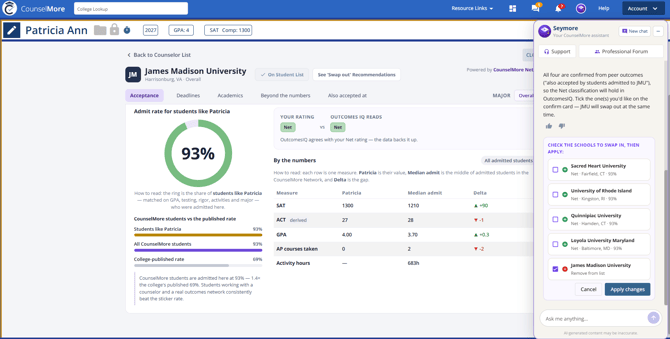
- Click Ask Seymore to help. Seymore opens on the right and asks to balance the list to match your target mix.
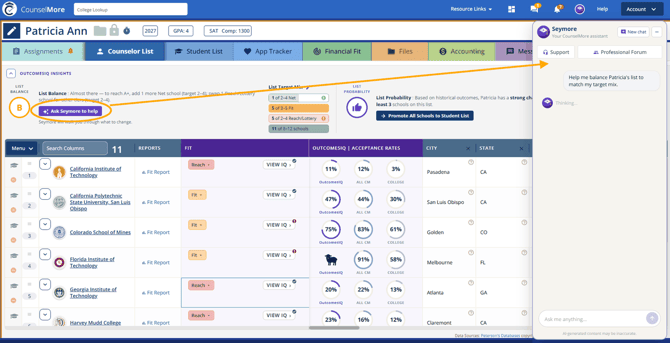
- Seymore proposes schools to add or remove and explains why.
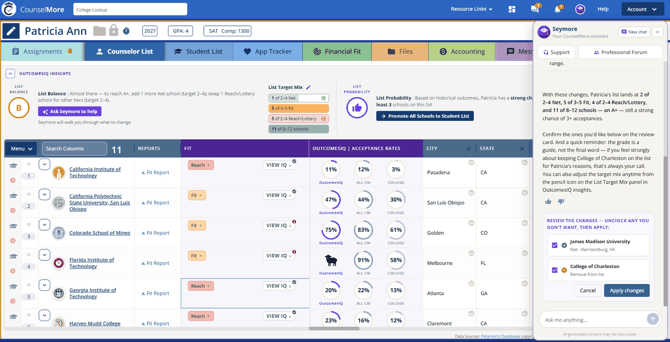
- On the review card, uncheck any changes you don't want, then click Apply changes. Click Cancel to change nothing.
- OutcomesIQ recalculates, and the grade updates.
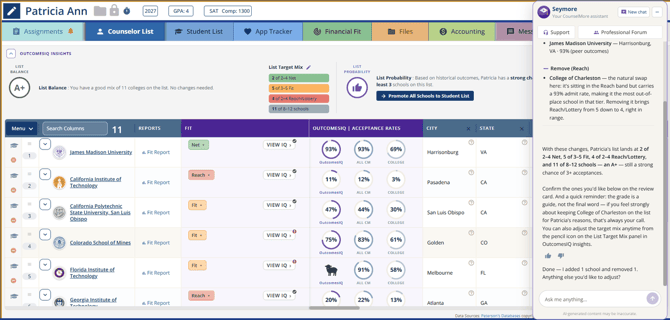
Tip: if any Fit suggestions are still open, Seymore asks you to Use or Dismiss them first, because they affect the balance.
At the top of the Seymore chat, click New chat to start a fresh conversation, or click – to minimize the chat to the side.

List Target Mix
List Target Mix shows a bar showing how many schools fall into each category — Net, Fit, Reach, and Lottery — compared to a target mix. Each bar shows the number of schools in that category next to its target range, plus a bar for the total number of schools.
- No icon: the category is within its target range.
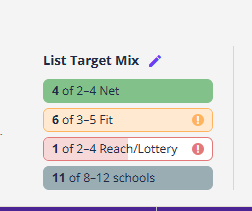
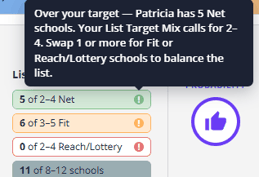
- ! Over your target: the list has more schools in this category than your target mix calls for. Hover over the ! to see how many to swap and which categories to swap them for.
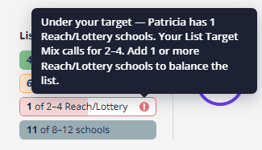
- ! Under your target: the list has fewer schools in this category than your target mix calls for. Hover over the ! to see how many to add.
Customizing the target mix
By default, OutcomesIQ grades your list against a standard target mix (roughly 30–40% Net, 40–50% Fit, 10–20% Reach/Lottery, and 8–12 schools total). You're not stuck with that default — the ✏️ icon next to List Target Mix lets you apply a different target instead, and your grade and recommendations update to match whichever one is selected.
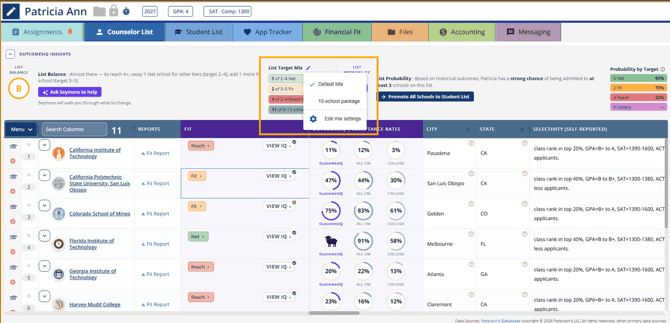
- Clicking the ✏️ shows Default Mix plus any custom presets you've created, each with a checkmark next to the one currently applied.
- Edit mix settings takes you to Settings > AI Features > List Target Mix, where you can:
- Adjust the Default Mix — the target percentage for each band plus a minimum and maximum number of schools (the three band percentages need to add up to 100%).
- Set At least ___ acceptances, the goal used by List Probability. A line below confirms what your mix can support, for example "With a 8–12 school list at this mix, we can confidently estimate up to 3 acceptances."
- Create named Mix Presets (for example, a "10-school package") with their own targets, using + Add preset. Click the trash icon to delete one.
- Back on a student's list, reopen the ✏️ to pick any preset you've created — the target mix shown, and the grade itself, will reflect that preset instead of the default.
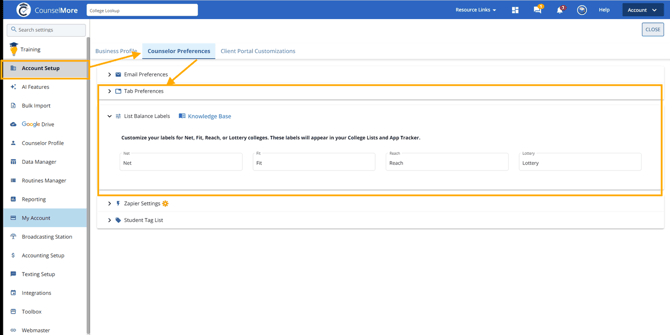
- To relabel the Net/Fit/Reach/Lottery categories themselves, go to Settings > Account Setup > Counselor Portal Options > List Balance Labels. These labels show up across your College Lists and App Tracker.
List Probability
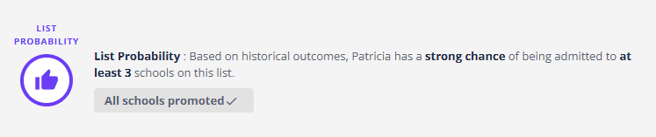
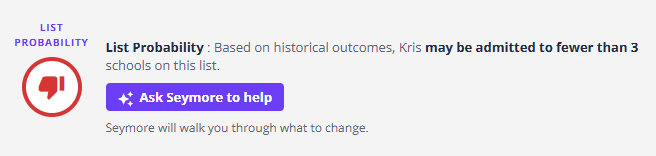
List Probability uses the outcomes of similar past applicants to estimate whether the student is likely to be admitted to enough schools on the list. "Enough" is the number you set in At least ___ acceptances in Settings > AI Features > List Target Mix, or in the preset applied to the student.
- Thumbs up: the student has a strong chance of being admitted to at least that number of schools. A button lets you promote the list to the next stage (Student List, then App Tracker). See Promoting schools below.
- Thumbs down: the student may be admitted to fewer schools than that number. Click Ask Seymore to help for suggestions to strengthen the list.
If there isn't enough data for some schools (more likely with the Your students source), List Probability shows how many schools have enough data and an Add data to calculate probability button instead of a result.
Probability by Target
The highest admit rate among the schools in each category: the student's best chance at any one school in it.
Review Disagreement Flags
For each school, OutcomesIQ shows whether it agrees with the Fit rating you gave it:
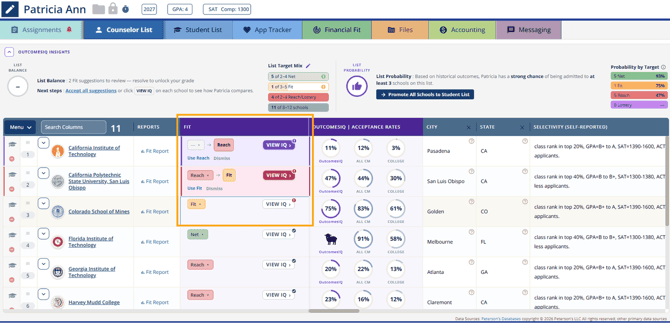
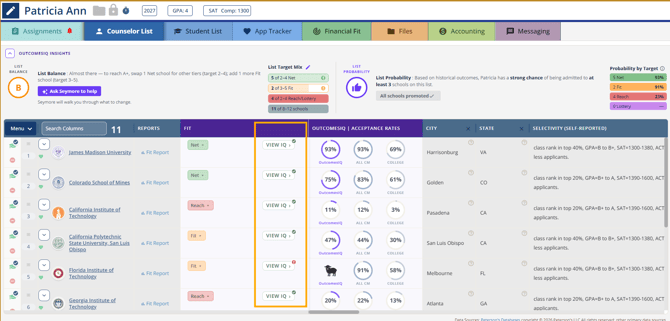
When it agrees, you'll just see your rating with a green checkmark on VIEW IQ — nothing else to do.
When it disagrees, the row is highlighted red and you'll see both ratings side by side (for example, Reach → Lottery). You have two options:
- Use [rating] — switch to OutcomesIQ's suggested rating.
- Dismiss — keep your original rating; OutcomesIQ won't flag that school again.
When there's no rating yet, the row is highlighted light purple and OutcomesIQ suggests one (for example, — → Reach), with the same Use and Dismiss options.
The marker on VIEW IQ shows each school's status: a red ! means a suggestion is open or was dismissed, and a green ✓ means OutcomesIQ agrees with the rating. To resolve every suggestion at once, click Accept all suggestions in the List Balance panel.
Comparing acceptance rates
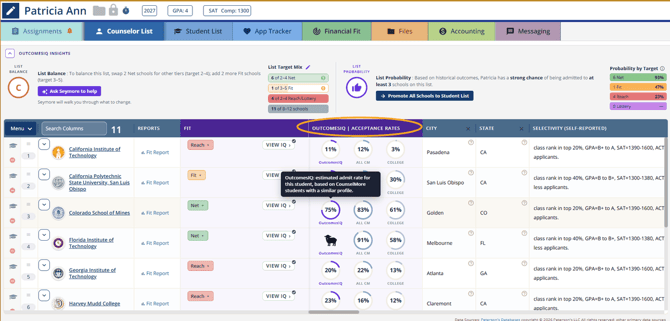
In the OutcomesIQ | Acceptance Rates column, you'll see three acceptance rates side by side. Hover over any rate for a description.
- COLLEGE: the school's published admit rate for all applicants
- ALL CM: the estimated admit rate based on all CounselMore students who applied there
- OutcomesIQ: the estimated admit rate for this student, based on CounselMore students with a similar profile
When the data source is Your students, the middle rate is labeled YOUR STUDENTS instead of ALL CM, and shows --% when there isn't enough of your own data.
If you see a black sheep instead of an OutcomesIQ rate, the student stands out from the flock: there are too few similar students yet to calculate a matched rate.
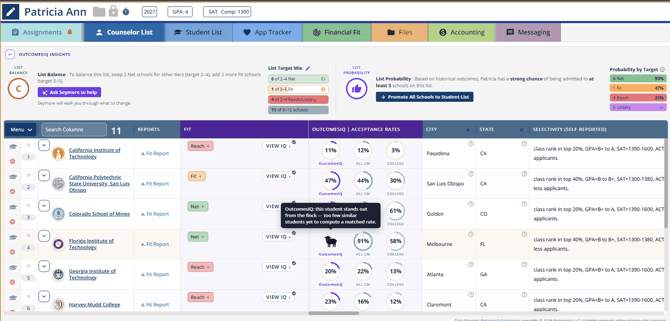
This gives you a quick sense of whether a school is more or less competitive than its sticker rate suggests, for a student with this particular profile.
Getting the full picture: VIEW IQ
Click VIEW IQ to open a detailed report comparing your student to real past applicants at that school.
- Each tab opens with a Seymore · AI Analysis summary of the student's strengths and gaps.
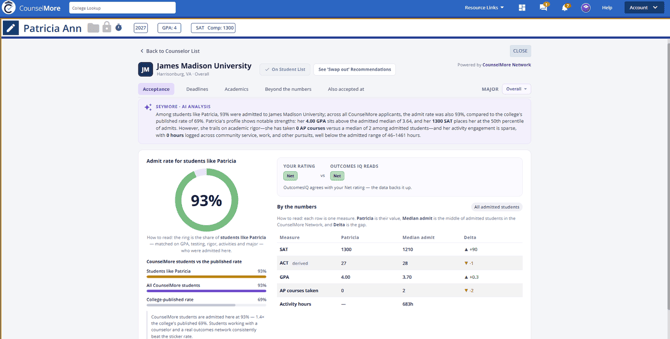
- If the school isn't on the Student List yet, click Promote to Student List to add just this school. Otherwise it shows On Student List.
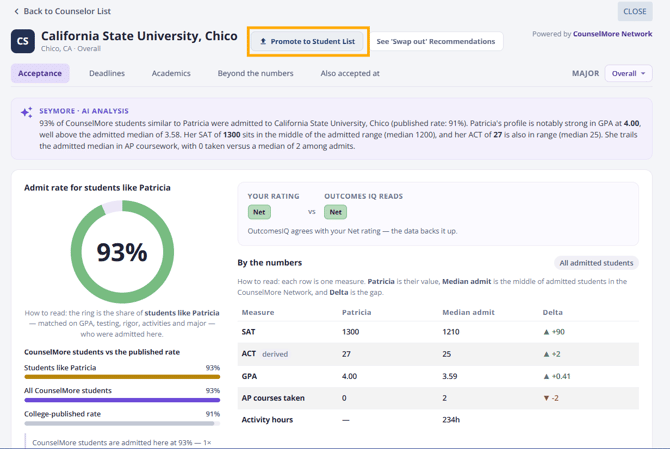
- Click Back to Counselor List or CLOSE to return to the list.
It's organized into five tabs:
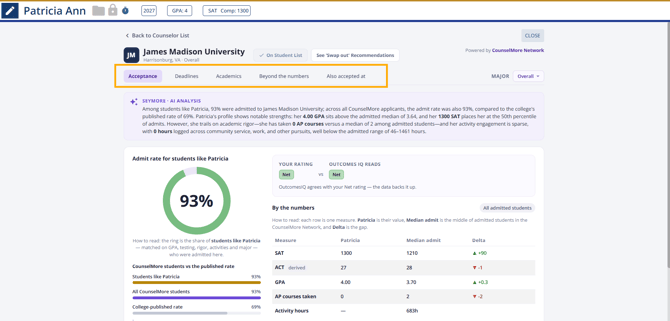
- Acceptance — how students like yours have fared here, plus a side-by-side of your Fit rating vs. OutcomesIQ's, and a By the numbers table comparing the student to the median admit.
- Deadlines — admit rates by application round (Early Decision, Early Action, Regular Decision, etc.), with each deadline and whether it's binding, so you can see whether applying early actually makes a difference at this school.
- Academics — how the student's GPA, test scores, AP courses, and coursework compare to typical admitted students, plus the school's testing policy and recommended courses.
- Beyond the Numbers — how the student's activities and interests compare to what admitted students showed, and what the school seems to value most.
- Also Accepted At — other schools that students admitted here also got into, which can be a helpful way to spot additional options — with an + Add to list button to add any of them straight to the list.
See 'Swap out' Recommendations
Click See 'Swap out' Recommendations at the top of the report, and Seymore suggests schools that could replace this one.
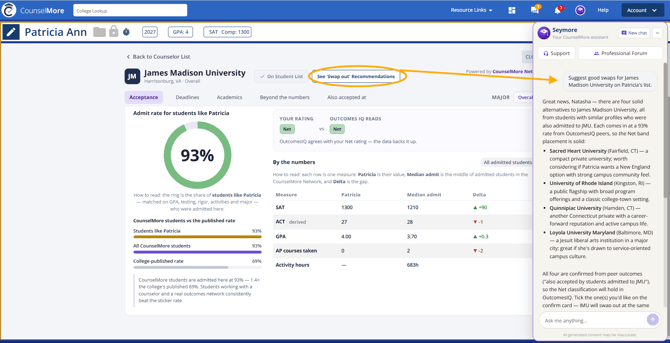
- Up to 4 options appear, in the same band as the school being replaced. None of them are already on the list.
- Also-accepted schools come first, then the highest rates. Each is labeled "Also accepted" or "Wider search," with its rate.
- Nothing changes until you tick options on the review card and click Apply changes.
- If there are no matches, Seymore says so and asks what to look for instead.
Promoting schools
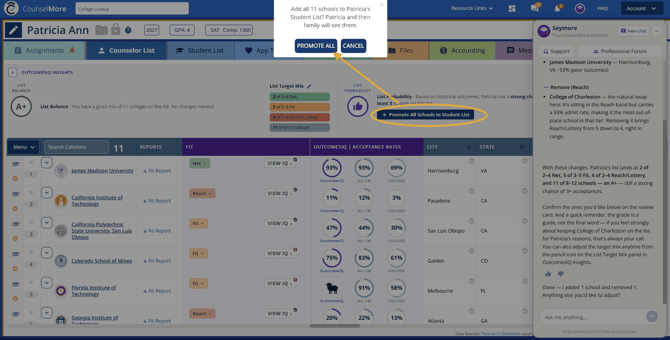
When List Probability shows a thumbs up, you can move the whole list forward:
- On the Counselor List, click Promote All Schools to Student List, then PROMOTE ALL. The student and their family will see these schools.
- On the Student List, click Promote All Schools to App Tracker, then PROMOTE ALL.
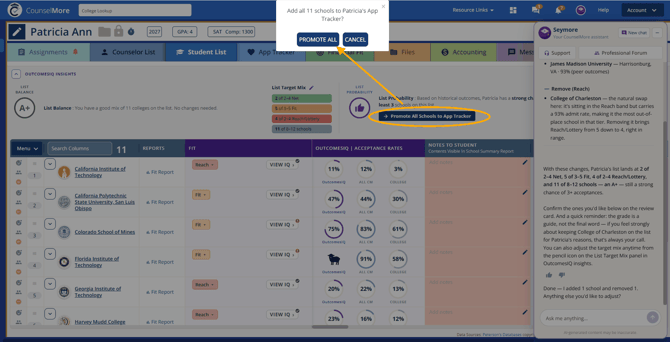
Click CANCEL to close without changing anything. Once every school is promoted, the button shows All schools promoted ✓.
What a Strong OutcomesIQ Session Looks Like
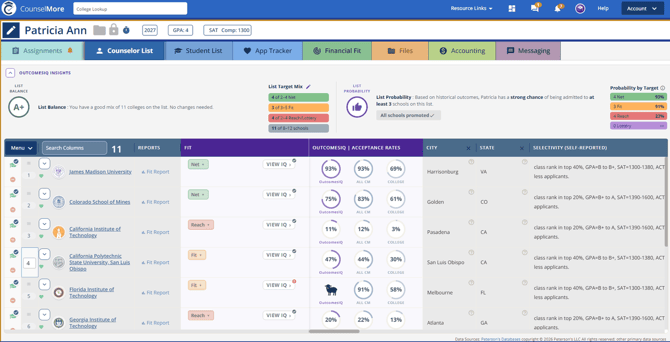
A successful review ends with:
- Every school having a clear, evidence-backed role on the list
- Disagreement flags resolved
- Student profile data as complete as possible
- A List Balance grade of A+, or close to it
- A List Probability thumbs up, with the schools promoted to the student
About OutcomesIQ
You’ll also find these answers in the app: go to Settings > AI Features and scroll below List Target Mix to About OutcomesIQ.
Is the data accurate?
OutcomesIQ is built from real admissions decisions recorded for past students, not from projections. Results depend on how complete and accurate those records are. When there aren’t enough similar students to compare, OutcomesIQ tells you so instead of guessing.
Where does the data come from?
Two places: outcomes students report in their Student Portal, and outcomes counselors record in CounselMore. Student details are de-identified, so no names or contact information are shared.
Why does the same high school matter?
Colleges read every application in the context of the applicant’s high school: its courses, its grading and how many students apply from it. That’s why OutcomesIQ looks at outcomes from students at the same high school: they’re the closest comparison you can get.
How do I make it better?
A database is only as good as what goes into it. Record every admissions decision, including denials and waitlists, as soon as you hear. OutcomesIQ is reciprocal: to see outcomes from across the CounselMore network, you add your own students’ outcomes too. Every outcome you add makes results better for every counselor, including you.
How colleges weigh the application
This explanation also appears in the app under Settings > AI Features > How colleges weigh the application.
Most colleges publish a Common Data Set (CDS) every year. In it, each college rates how much each part of the application counts in its review, using four levels:
- Very Important: a major factor in the decision.
- Important: counts meaningfully, but isn’t decisive on its own.
- Considered: looked at, but carries less weight.
- Not Considered: not part of the decision.
How this shows up in the Fit Report
The Admissions Profile Review in each college’s Fit Report lists application items such as essays, recommendations, test scores and demonstrated interest. Next to each one it shows that college’s CDS weighting and the student’s self-assessment, so you can see where the student’s strengths match what the college values most and where to focus.
INSTRUCTIONS
HOW TO UPDATE AND CLEAN STUDENT INFORMATION
Thank you for your interest in adding OutcomesIQ to your existing CounselMore account.
To ensure the highest level of data integrity, please complete the following steps before your admissions outcomes are shared anonymously with the CounselMore network.
Step 1: Export Your Admissions Outcomes into a spreadsheet
- Log in to CounselMore.
- Click Account (top right) > Reporting.
- Open the Admissions Outcomes Report.
- Toggle to Per Student.
- Filter for All Graduation Years.
- Export the report as a spreadsheet.
Step 2: Update the spreadsheet and upload
Review the spreadsheet and complete as many empty cells as possible. The more complete your historical admissions outcomes, the more valuable OutcomesIQ becomes—for both you and the community.
When finished:
- Click Account > Settings.
- Select Bulk Upload.
- Upload your updated Admissions Outcomes spreadsheet.
A Note on Data Privacy
Historical outcomes are shared anonymously with the CounselMore network at your discretion. This is a closed environment built only for professional counselors — never sold, shared, or rented to advertisers, colleges, or any outside party. That standard has been in place since 2016.
What makes a record complete?
What makes a student record a "complete" student record?
I'm not sure how much I should "update"?
The Short Answer
You don't need a complete record to contribute a valuable one. But if you're prioritizing what to fill in first — whether you're migrating old students or logging new ones — three categories matter most, in this order:
- Student profile basics: GPA, test scores, and intended major
- The college list itself: the schools the student actually applied to — ideally at least five
- Outcomes per school: admitted, waitlisted, or denied for each school on that list
A record with all three is strong. A record with even the first two is still genuinely useful. Partial records are not a problem to apologize for — they're how the system is designed to work.
Why These Three Categories, in This Order
GPA, test scores, and major are core inputs to Outcomes IQ's similarity matching — they're what determines whether a future student is "similar" to this historical one. Without them, a record can't be matched to anything.
The school list matters as much as the profile. A strong student profile with only one or two applications attached gives Outcomes IQ very little to work with. Five or more schools per student gives enough range — reaches, targets, and accessibles — for the record to be useful across a variety of future comparisons, not just one narrow case.
Outcomes complete the picture. A list of schools without decisions attached tells you where a student applied, not what happened. The admitted/waitlisted/denied result on each school is what turns a list into evidence.
CounselMore even tracks the Initial Decision and the Final Decision in admissions applications because, as many have experienced; the process tends to begin with a waitlist. Knowing this about a school's process can mitigate expectations and provide a more realistic pathway and journey overall.
Why Your Own Data Helps You First
Here's something worth understanding clearly: when you're the one entering your own historical students, you are the common denominator. Your notes, your advising style, your student population — all of it is consistent across your own records in a way it isn't across the wider network yet.
That means your own historical data will sharpen Outcomes IQ's recommendations for you almost immediately, even before the broader network has caught up. You don't need the network to be fully mature for your own contributions to start paying off in your day-to-day advising.
Over time, as more counselors add their own historical outcomes, those individual pools aggregate into a much larger, closed dataset — used only within the CounselMore professional community, never sold or shared outside it. The more counselors who contribute, the more accurate the aggregate model becomes for everyone. This is genuinely a case where telling a colleague to add their data helps your own results too.
You Don't Need to Reconstruct Everything by Hand
Older records — especially students from earlier years when your systems were less structured — are exactly where AI Assist is built to help. Paste or upload whatever you already have (old resumes, meeting notes, essay drafts, decision emails), and AI Assist will read it and pre-fill matching fields for your review, rather than asking you to manually rebuild a record from memory.
For your more recent and future students, the best approach is the simplest one: let the record build itself as you work. Logging GPA, test scores, major, the list, and outcomes as they naturally happen during your advising process means you're never facing a backlog to reconstruct later.
Learn how to set default data columns, then add outcome columns to the student's College List. Record the student's chosen major when they select each school, and update admissions outcomes as decisions arrive. Collect this information as you go rather than waiting until the end of the process to reconstruct it. Default data columns