
Audience: the practice admin or office manager setting this up for a team
Time to set up: about 10 minutes for the first counselor, 5 for each one after
You'll need: a Zapier account, each counselor's CounselMore login, and Zoom on a paid plan
.png?width=670&height=104&name=zapier-zoom-counselmore%20(2).png)
Working on your own? Read Zap your meeting transcripts into CounselMore (Single Counselor) instead — this article is about structure you don't need.
What this does
After each Zoom meeting, Zapier sends the transcript to CounselMore, which saves it as a Meeting Note on the right student, assigned to the counselor who held the meeting. Nobody copies or pastes anything.
Setting it up correctly for a team is mostly about structure, not the Zap itself. Read the next section before you build anything.
Read this first: one rule decides everything
A Zap watches one Zoom login, not a person.
So your Zoom setup determines what’s possible:
| Your Zoom setup | Zaps you can have | What you get |
|---|---|---|
| One shared (admin) Zoom account | Exactly one | Every note and notification goes to the one CounselMore login that Zap uses |
| One Zoom account per counselor | One for each counselor | Each note filed on the right student, assigned to and notified to the right counselor |
Each counselor needs their own Zoom account. If counselors are separate users under one shared Zoom account, only one of their Zaps will receive transcripts.
Three other Zoom facts worth knowing, because they’re often the real constraint:
- Transcripts require cloud recording, which requires a paid Zoom license. Free users can only record to their computer, which produces no transcript, so there’s nothing to send.
- Meetings must be recorded to the cloud. Even on a paid license, a meeting recorded to the computer creates no note. Turning on automatic cloud recording avoids this.
- One Zoom account can’t host two meetings at the same time. If your counselors meet different students at the same time, they already need separate Zoom accounts, regardless of CounselMore.
An example of the wrong way to set this up: If you have one Zoom account for 1 Admin and 2 Counselors and build three Zaps (one per person), all three are connected to the same Zoom account, so only one of them receives transcripts. The other two counselors’ notes never arrive, and there’s no error to tell you.
Option A: one Zoom account per counselor (recommended)
This is the only setup that attributes notes correctly.
You don’t need a Zapier account for each counselor, and you don’t need Zapier’s multi-user plan. One Zapier account can hold as many Zaps as you have counselors.
Build one Zap per counselor in a single Zapier account. Every Zap is the same Zoom transcript → Create Meeting Note recipe. Only the two connections differ:
| Zap | Zoom connection | CounselMore connection |
|---|---|---|
| Zap 1 | Counselor A’s Zoom login | Counselor A’s CounselMore login |
| Zap 2 | Counselor B’s Zoom login | Counselor B’s CounselMore login |
| Zap 3 | Counselor C’s Zoom login | Counselor C’s CounselMore login |
Pairing those two connections correctly is the whole job. A Zap on Counselor A’s Zoom but Counselor B’s CounselMore login will file A’s meetings on B’s students, or send them to triage. Name each Zap after the counselor so they’re easy to tell apart. Zapier also labels each CounselMore connection with the login it uses.
Build and test one Zap completely before starting the next.
Two things to know before you start
- You’ll need each counselor’s passwords. Connecting a Zap requires the counselor’s Zoom and CounselMore credentials, and whoever builds the Zaps has to type them in. If your practice would rather not share passwords, Zapier’s multi-user plan lets each counselor enter their own credentials into a shared workspace. It costs more and changes nothing about how notes behave. It’s only about who types the password.
- Password changes and expired connections stop a Zap. When a counselor changes their CounselMore password, or a Zap’s Zoom connection expires, their notes quietly stop arriving. Reconnect that account in the counselor’s Zap.
Option B: Option B: one shared Zoom account
If your practice shares a single Zoom account, build exactly one Zap. Adding more makes things worse, not better.
Connect it with the CounselMore login of whoever should own the notes. Be clear about what this means:
- Every note is assigned to that one login, whoever actually held the meeting.
- Every notification goes to that one person, so the counselor who held the meeting is never told their note arrived.
- The assignments report credits that one person for all of it.
- Matching compares each transcript against a wider set of students (see “How matching works” below), so more notes need assigning by hand.
The same applies if one admin Zap is set to “All new Audio Transcripts on my account” to catch every user’s meetings: all notes go to that admin’s CounselMore login.
None of this can be improved in software while the Zoom account is shared. If attribution matters to your practice, Option A is the fix.
Building each Zap
Before you start:
- In each counselor’s Zoom settings (Settings → Recording), turn on Cloud recording with Create audio transcript, and ideally Automatic recording in the cloud.
- Connect Calendly or Acuity to CounselMore. The scheduler connection is the single biggest help for automatic matching.
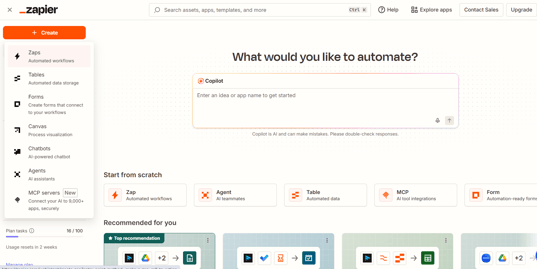
- In zapier.com, click + Create → Zaps.
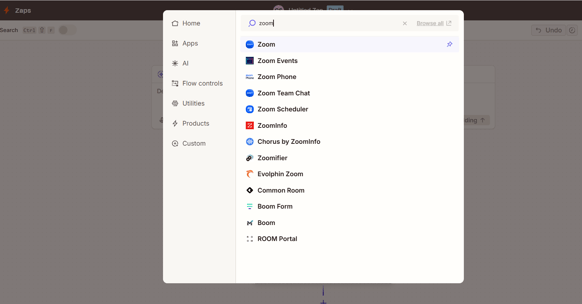
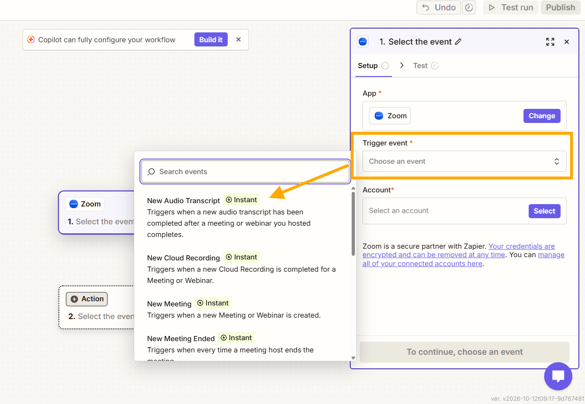
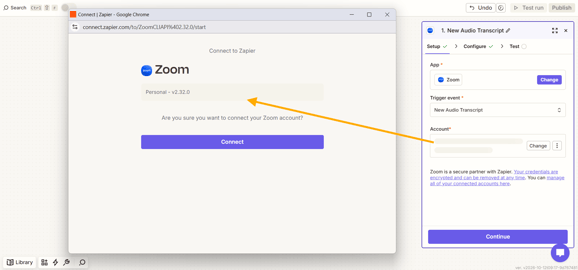
- Trigger: search Zoom and choose New Audio Transcript. Not “New Recording” or “New Meeting,” which fire before the traexists. Connect that counselor’s Zoom login. Trigger scope: leave it blank. Don’t choose “All new Audio Transcripts on my account.
3. Click Test trigger and pick a real recent meeting for sample data.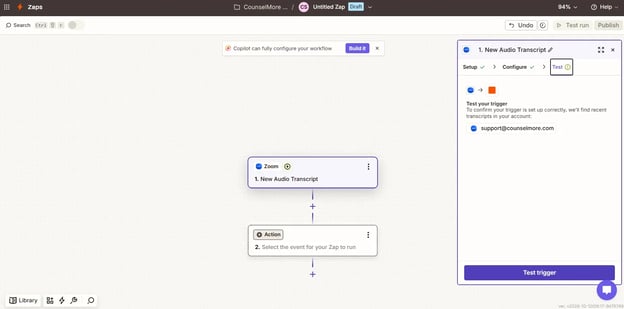
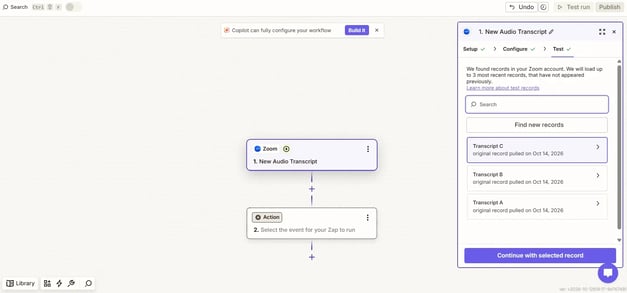
4. Action: search CounselMore, choose Create Meeting Note, and sign in with that counselor's CounselMore email address and password. 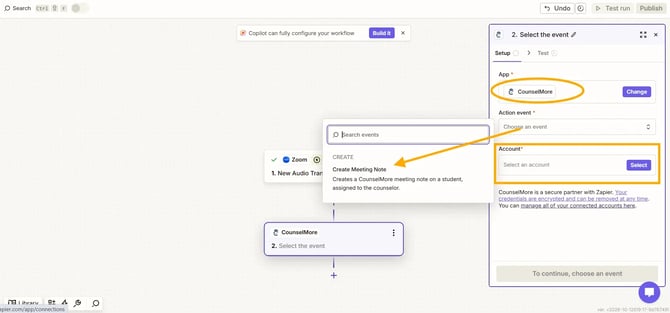
|
CounselMore field |
Required? |
Map from Zoom |
|---|---|---|
|
Meeting Title |
Required |
Topic |
|
Meeting Date |
Required |
Start Time |
|
Meeting Transcript |
Required |
Recording Files File Contents |
|
Zoom Meeting ID |
Recommended |
Meeting ID — the numeric ID, not the UUID |
|
Student Email |
Leave blank |
Only to send every note from this Zap to one particular student |
|
Student Name |
Leave blank |
Only used if no student matches the email, and must match CounselMore exactly |
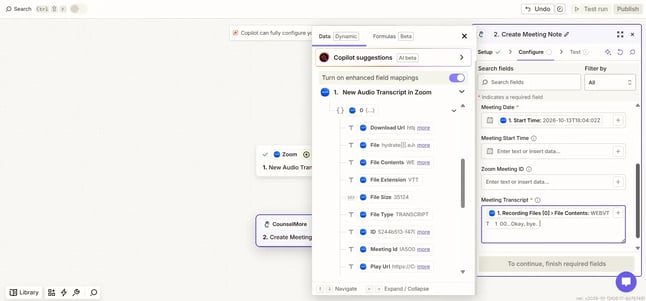
Meeting Date must be the meeting’s start time. It’s used both to name the note and to find the booking. And map Zoom Meeting ID: it’s optional, but it’s the most reliable match, and Zapier won’t fill it in later.
Leave Student Email and Student Name blank. Zoom doesn’t include attendee names or emails, so there’s nothing to map into them. Anything you put there overrides automatic matching for every meeting that Zap handles.
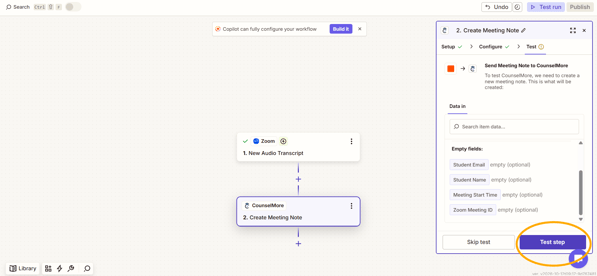
- Click Test step. This creates a real meeting note on a real student if the sample meeting was with one. Keep it, or delete it from their Assignments tab.
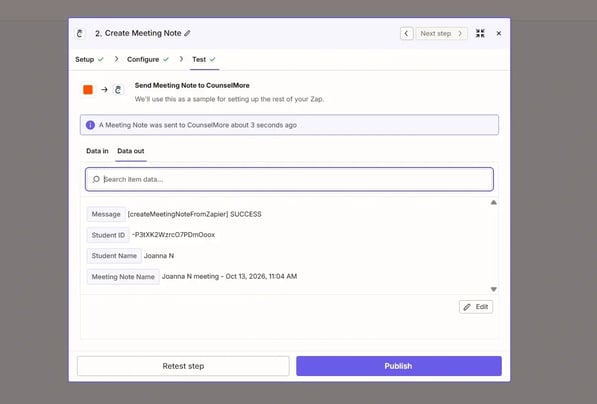
- Success with a student’s name means it filed correctly.
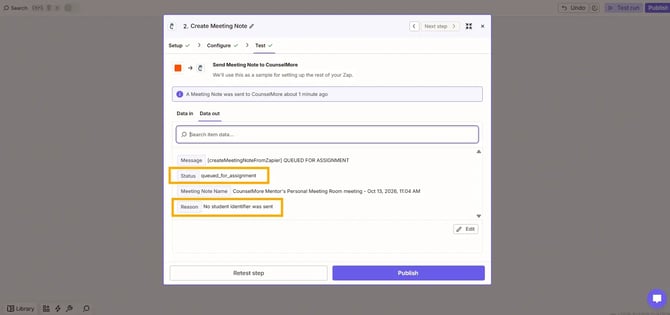
- Queued for assignment means CounselMore couldn’t tell who the meeting was with. The Zap is still working correctly.
- Click Publish, then repeat for the next counselor.
Zoom can take longer than the meeting itself to produce a transcript, and Zapier may take up to 15 minutes more to pick it up.
How matching works
Zoom doesn’t tell us who attended. A Zoom transcript contains no attendee names or email addresses. Anyone who joins from a link is a guest, and Zoom leaves guest details blank. So CounselMore infers the student from your bookings and your students.
It tries these in order and stops at the first single, confident answer:
- A student email or name you mapped in the Zap
- The Zoom Meeting ID, when the booking created its own Zoom link
- A booking in CounselMore starting within 15 minutes of the meeting
- Exactly one student’s full name in the meeting title
- Exactly one student’s full name in the first few lines of the transcript
- Otherwise, held on the dashboard to assign by hand
Tip for rule 4: the title is captured when the meeting ends. Put the student’s full name in the title before or during the meeting. Renaming it afterwards has no effect.
The important part for a practice: which students are considered depends on whose login the Zap uses.
| Zap connected with | Students considered | Effect on matching |
|---|---|---|
| A counselor’s login | That counselor’s own caseload | Two counselors meeting different students at 2pm can never be confused. This is why Option A matters |
| An admin’s login | Every student in the office | A 2pm meeting is genuinely ambiguous across the whole office, so more notes need assigning by hand |
This is the real cost of a single shared Zap: it’s not only that one person owns all the notes, it’s that matching has a much wider field of students to choose between, and CounselMore refuses to guess between two plausible ones.
Why it refuses: a meeting transcript is sensitive. Filing one on the wrong student would put a private conversation in the wrong file. A wrong answer is worse than asking, so when there’s any doubt, we ask.
Names must match exactly as stored in CounselMore for rules 4 and 5: full name, whole word. Names under four characters are skipped because they match too much by accident. Zoom’s transcription also often misspells names, so rule 5 is a bonus rather than something to rely on.
What each counselor sees
With Option A set up correctly, each counselor gets their own experience, and nobody sees anyone else’s queue:
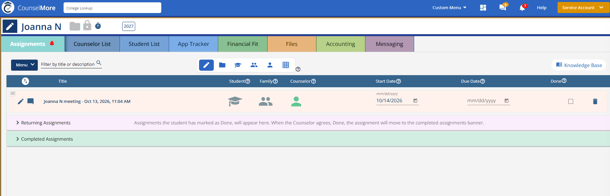
- Notes are filed on their students and assigned to them
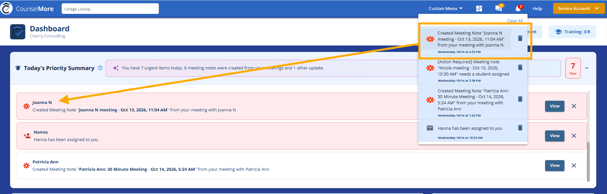
- The [Action Required] alert for an unmatched transcript goes to them, not to the admin
- The assignments report credits them
- Matching only considers their own caseload
Assigning an unmatched note (whoever receives the alert):
- In Today's Priority Summary, find the item marked [Action Required] — it's in the notification bell too
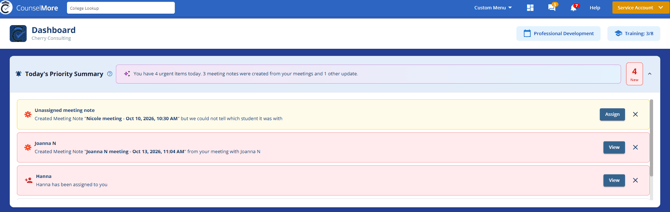
- Click Assign
- Read the transcript in the window to identify the meeting
- Start typing the student's name, pick them from the list, and click Assign
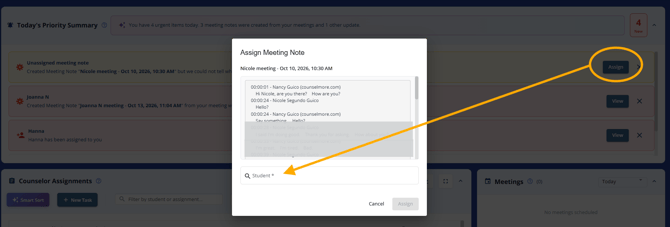
The note is then filed exactly as if it had matched automatically. Dismissing the alert with ✕ hides it but doesn't delete the transcript.
Setup checklist
- Each counselor who needs transcripts has their own paid Zoom account
- Cloud recording with audio transcript is on in each Zoom account
- Calendly or Acuity is connected to CounselMore
- One Zap per counselor, in one Zapier account
- Each Zap’s trigger is New Audio Transcript, with Trigger scope left blank
- Each Zap's Zoom connection and CounselMore login belong to the same person
- Each Zap has Zoom Meeting ID mapped
- Each Zap has Meeting Date mapped to the meeting's start time
- Student Email and Student Name are blank in every Zap
- Each Zap tested individually and published
- Counselors know to tell you when they change their CounselMore password
Troubleshooting
|
What you see |
What to check |
|---|---|
|
Only one counselor’s notes arrive, the others never do |
Those counselors share one Zoom account with separate Zaps. Only one Zap per Zoom account receives transcripts. Give each counselor their own Zoom account (Option A) or use one Zap (Option B). |
|
The same meeting produced two or three notes |
More than one Zap is set to catch the same meetings, for example a Zap set to “All new Audio Transcripts on my account.” Keep one Zap per Zoom account, with Trigger scope left blank. |
|
Notes appear under the wrong counselor |
That Zap's CounselMore connection uses someone else's login. Reconnect it under the right one |
|
One counselor's meetings land on another's students |
That Zap's Zoom connection and CounselMore login belong to different people. Re-pair them |
|
One counselor's notes suddenly stopped |
Open their Zap. If the Zoom or CounselMore connection says expired, or they changed their password, click Reconnect this account. |
|
Everything arrives on the admin |
Expected with a single shared Zap. See Option A |
|
Lots of notes need assigning by hand |
Is Calendly or Acuity connected? Is Zoom Meeting ID mapped in every Zap? Is the Zap on an admin login rather than a counselor's? |
|
Notes match sometimes, not always |
If a counselor uses the same personal Zoom room for every meeting, the Meeting ID can't identify it, so matching relies on the booking time |
|
Meetings that run late don't match |
They still match if the booking created a unique Zoom link. With a personal meeting room, a late start can fall outside the 15-minute window |
|
The time in a note title is wrong |
That Zap's Meeting Date is mapped to the wrong Zoom field. It should be the start time. This affects matching too |
|
The Zap never runs |
Was the meeting recorded to the cloud, not the computer? Is audio transcript on? Did you choose New Audio Transcript, not “New Recording”? |
|
A note was filed on the wrong student |
Check Student Email and Student Name are blank, since they override everything. If they are, please report it |
|
Zapier shows an error on the CounselMore step |
Open the run in Zap History and send the error to support@counselmore.com |
Privacy
Meeting notes are visible only to counselors on your account who can see that student, and are never shared with the student or parent. Office admins can see notes for students across the office; secondary counselors listed on a student can also see notes for that student.