
The CounselMore Create Meeting action works with any meeting booking service that connects to Zapier and has a new booking or new event trigger, such as Google Calendar or zcal. This guide was tested with Google Calendar, including a Google Calendar booking page, so the steps and field names below are for Google Calendar.
Before you start
- A Zapier account.
- In CounselMore, go to Account Setup › Counselor Preferences › Zapier Settings and check Enable Zapier.
- Your Google Calendar. A booking page (Google Calendar appointment schedule) is optional but recommended.
- One real test booking with a student as the guest. Zapier needs it to show you the right fields in step 6.
Step 1: Create a Zap with Google Calendar as the trigger
- In Zapier, click Create › Zaps.
- For the trigger, choose Google Calendar.
- Set Trigger event to New or Updated Event. This sends new bookings and also updates CounselMore when a booking is moved.
- Sign in with the Google account that holds your bookings.
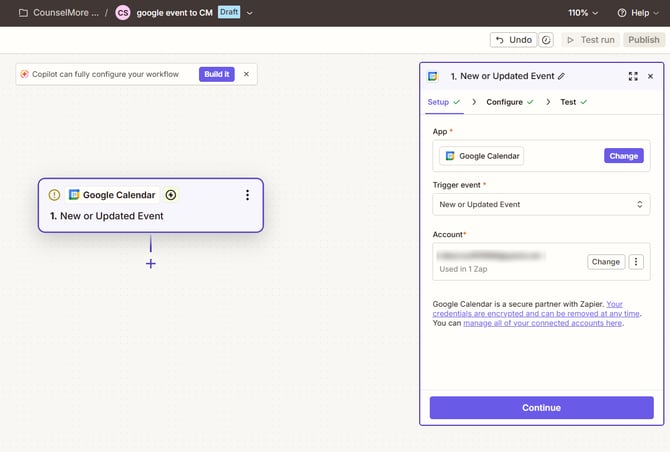 Trigger: Google Calendar · New or Updated Event
Step 2: Choose your calendar
On the Configure tab, pick the calendar your bookings land on. Leave Expand Recurring Events on True.
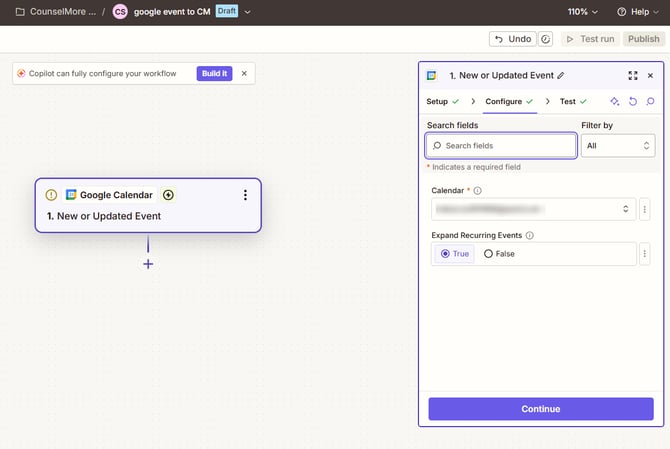 Pick the calendar that receives your bookings
Step 3: Make a test booking, then load it into Zapier
- Book a slot on your booking page as a student (or add an event with the student as a guest).
- In Zapier, open the trigger's Test tab and click Find new records.
- Select your test booking and click Continue with selected record.
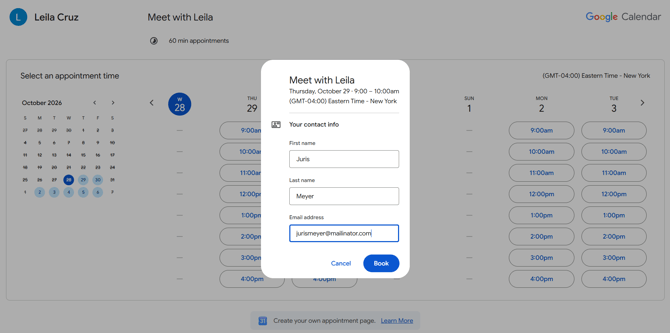 A student books on your Google Calendar booking page
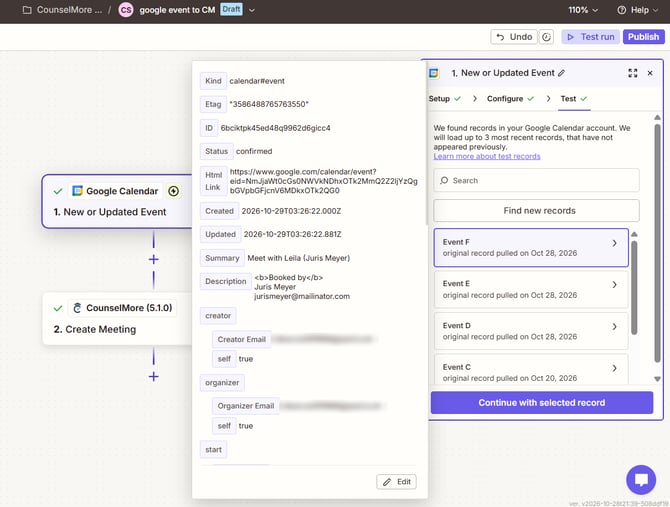 Select the booking in Zapier. Booking-page events say "Booked by" with the student's name and email.
Don't use Zapier's generic sample ("This is a test event"). It has no guests, so you won't be able to map the student's email in step 6.
Step 4: Add the CounselMore Create Meeting action
Add an action step, choose CounselMore, and set Action event to Create Meeting.
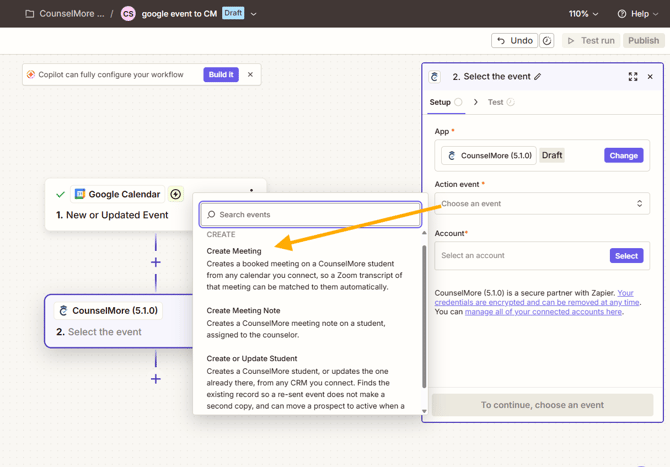 Create Meeting adds a booked meeting to a CounselMore student
Step 5: Connect your CounselMore account
Click Select under Account and sign in with your CounselMore email and password. No API key is needed.
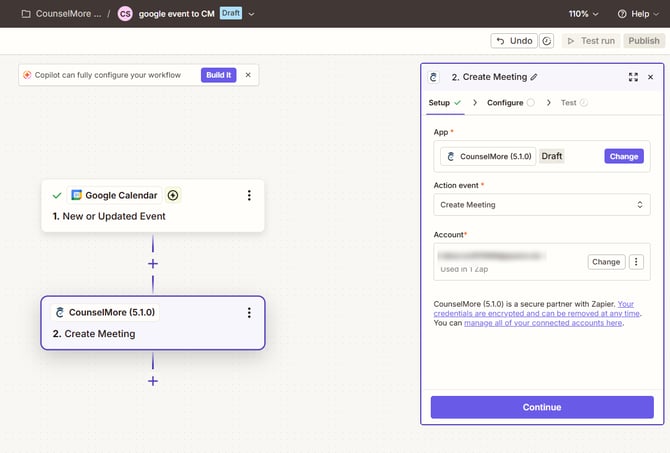 Create Meeting connected to your CounselMore account
Step 6: Map the fields
Zapier fills some fields in automatically, and those guesses are often wrong. Clear each field and set it as below.
| CounselMore field | Choose from Google Calendar |
|---|---|
| Appointment ID | ID |
| Contact Email | Attendees › 1 › Email, the entry that shows the student's email |
| Contact Name | Leave blank |
| Meeting Start Time | Start › Date Time |
| Meeting End Time | End › Date Time |
| Timezone | Time Zone (under Start or End) |
| Other fields | Leave blank |
Contact Email: pick the student, not yourself
In the data picker, turn on Turn on enhanced field mappings. The attendees then appear as numbered entries (0, 1). Open the one that shows the student's email and choose its Email.
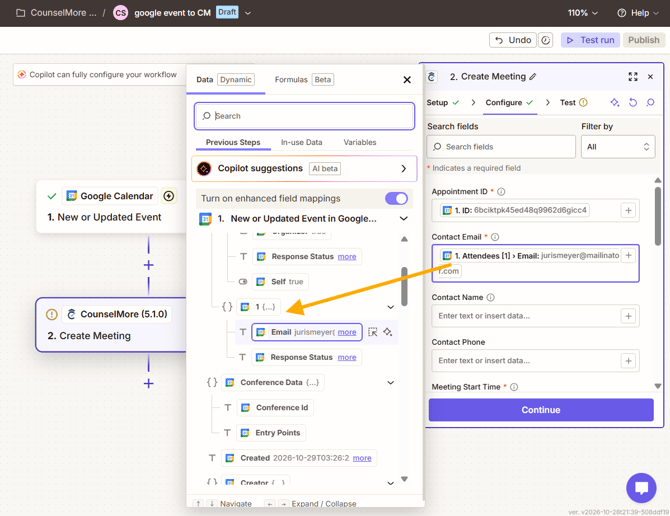 Enhanced field mappings on · Attendees [1] › Email is the student
Avoid these fields. Creator Email and Organizer Email are you, so every booking would be saved under your own email. Attendee Emails and Attendees Email list everyone on the event together, including you.
Start and end times
Use Date Time, which includes the date, time and time zone offset.
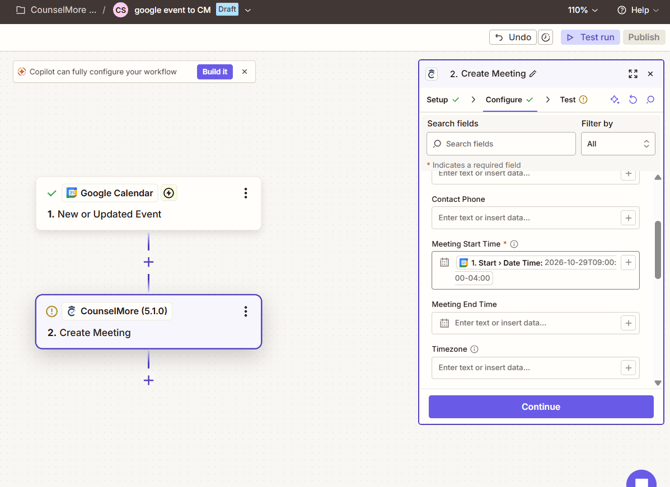 Meeting Start Time → Start › Date Time
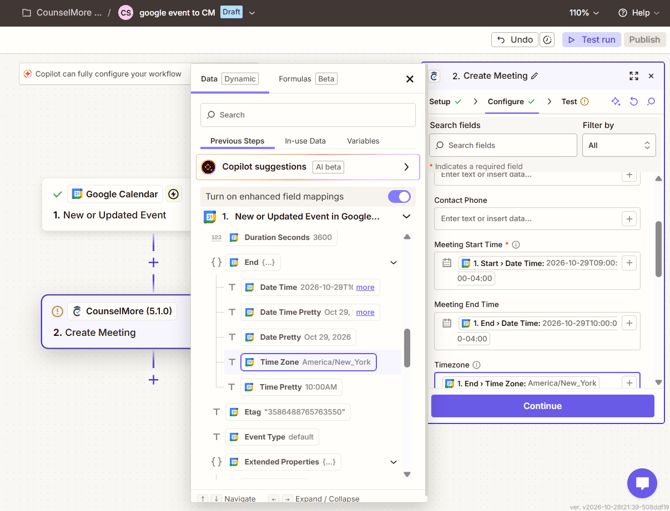 Meeting End Time → End › Date Time · Timezone → Time Zone
Contact Name
Google Calendar doesn't give Zapier the student's name. The only name fields are yours (Creator and Organizer Display Name), so leave Contact Name blank.
Step 7: Publish the Zap
Check the Data in list on the Test tab (appointment ID, start and end times with offset, time zone, the student's email), then click Publish. Testing the step is optional; your next real booking will show whether it works.
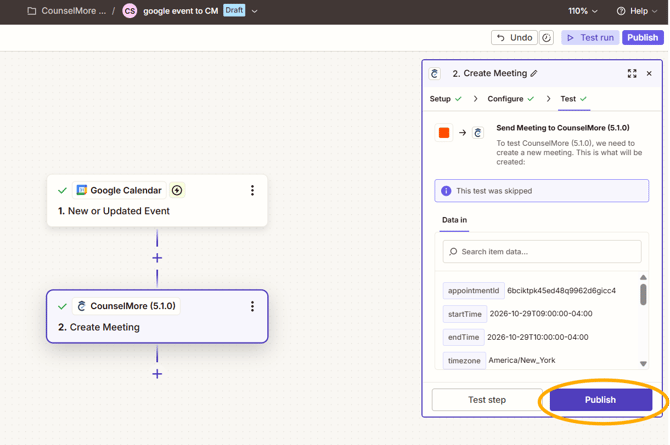
Review Data in, then Publish
Bookings made before you publish aren't sent. If you change one of them after publishing (for example, move it), Zapier sends it then.After setup
What you'll see in CounselMore
Within a minute or two of a booking, the meeting appears on the student's Assignments tab and in the Meetings panel on your dashboard.
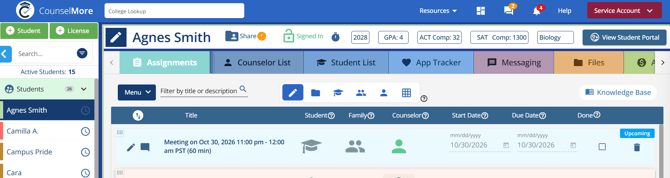 The meeting on the student's Assignments tab
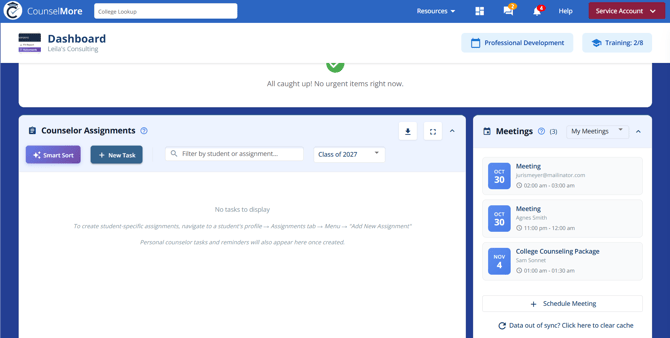 The meeting in your dashboard Meetings panel
Good to know
Students are matched by email
CounselMore finds the student by the email they booked with. If it matches a student in your account, the meeting goes on that student. Ask students to book with the same email that's on their CounselMore record.
New students arrive as Prospects named by their email
If the email isn't in CounselMore yet, a new Prospect is created with the meeting attached. Prospects don't add a paid seat. Because Zapier has no student-name field to send, the Prospect's name shows as their email address. Open the student in CounselMore and change the name yourself.
Rescheduled bookings update the same meeting
If a booking is moved in Google Calendar, CounselMore updates the existing meeting to the new time. You won't get a second copy.
Cancelled bookings stay in CounselMore
Cancelling or deleting a booking in Google Calendar does not remove the meeting from CounselMore. Delete it in the CounselMore app yourself: open the student, go to the Assignments tab and click the trash icon on the meeting.