
Adding the alternate address does not automatically give the new account access to the student's Google Drive folder. The counselor must reshare the folder with the new address.
There are two parts: one for the student, one for the counselor.
Part 1: Student — add an alternate email address
- Log in to your Student Portal.
- Open the Student Information banner.
- At the top of the banner you will see two email fields:
- Student Email — your primary email address. This field is greyed out. You cannot edit it.
- Alternate Student Email — an empty field where you can add a second address.
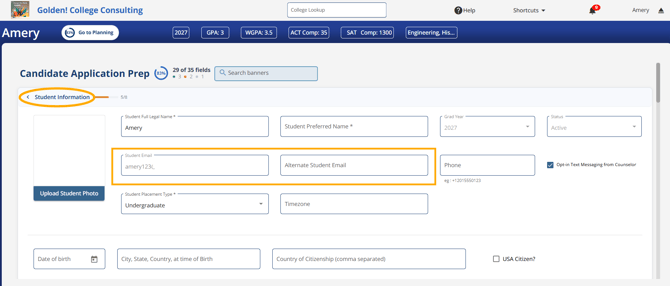
- Click into the Alternate Student Email field and type the new email address.
Your alternate address is saved to your account and linked to your counselor's account.
Need to change your primary email instead? Students cannot do this. Ask your counselor to change it for you.
Part 2: Counselor — share the Google Drive folder
Adding an alternate address does not give the new account access to the student's Google Drive folder. Without this step, the student will log in under the new address and not see their files.
- In your Counselor Portal, open the student's record and go to the Files tab.
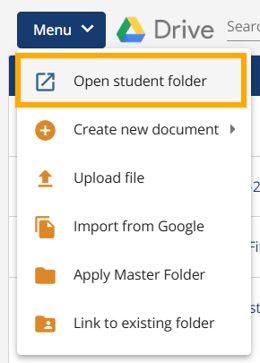
- Click the menu button.
- Click to open the student's folder.
- Share the folder with the student's new alternate email address.

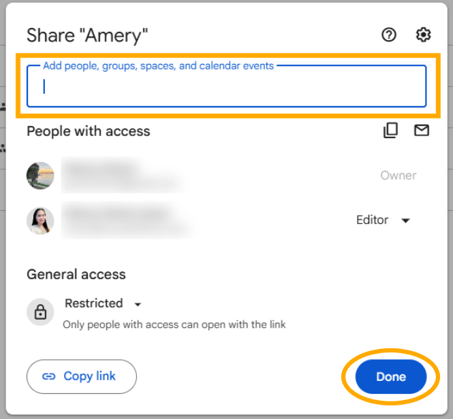
Once the folder is shared, the student's files are available under the new address.