
How to Participate in feedback about the Fin Fit tab
Your input is invaluable in shaping this tool. By clicking on the link, you’ll find a dedicated section where you can easily send us your feedback. Share your experiences, challenges, or suggestions. Our developers will review your feedback to guide improvements and ensure the tool becomes everything you need.
What’s New: Financial Fit Tab
The Financial Fit tab helps counselors compare colleges based on cost of attendance, financial aid, loans, and estimated net cost. This worksheet brings together reported college data and counselor-entered estimates to support financial planning conversations with students and families.
Accessing the Financial Fit Worksheet (Counselors)
-
Open a student profile
-
Click the Financial Fit tab
-
The Financial Fit Worksheet will load automatically
The worksheet is displayed in a wide table format. You may need to scroll horizontally to view all sections.
Student & Parent Portal Visibility
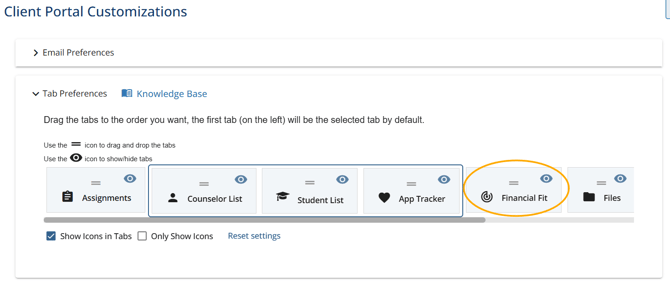
The Financial Fit tab can also be viewed in the Student and Parent Portals.
-
Counselors control whether this tab is visible
-
When enabled, students and parents can view and edit the Financial Fit worksheet in their portal
College List
Each row in the worksheet represents a college from the student’s app tracker list. Colleges are displayed on the left side of the table and remain visible as you scroll across financial data.
Existing Reported Data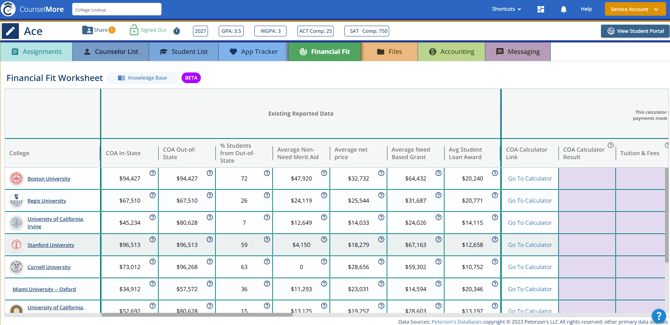
This section displays reported financial data sourced from college datasets, including:
-
Cost of Attendance (COA) – In-state and out-of-state
-
% of Students from Out of State
-
Average Non-Need Merit Aid
-
Average Net Price
-
Average Need-Based Grant
-
Average Student Loan Award
Cost of Attendance Calculations
Use this section to break down the full cost of attending each college.
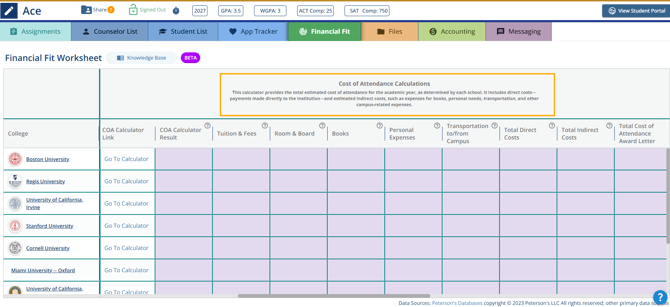
Columns include:
-
COA Calculator Link
-
Tuition & Fees
-
Room & Board
-
Books
-
Personal Expenses
-
Transportation to/from Campus
-
Total Direct Costs
-
Total Indirect Costs
-
Total Cost of Attendance (Award Letter)
Gift Aid
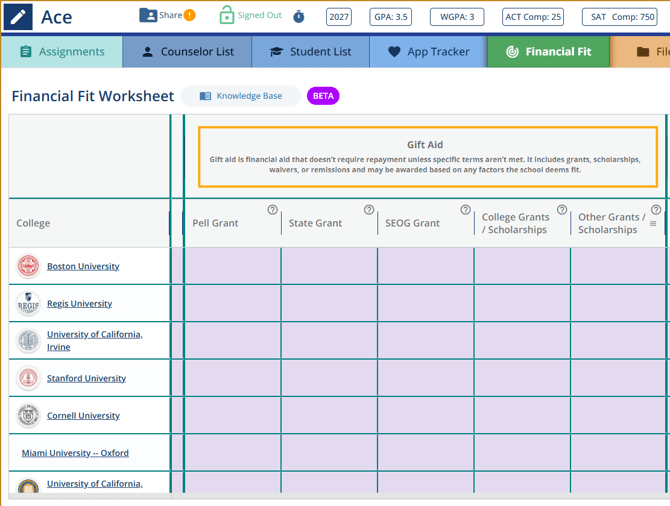 Tracks aid that does not require repayment:
-
Pell Grant
-
State Grant
-
SEOG Grant
-
College Grants / Scholarships
-
Other Grants / Scholarships
Loans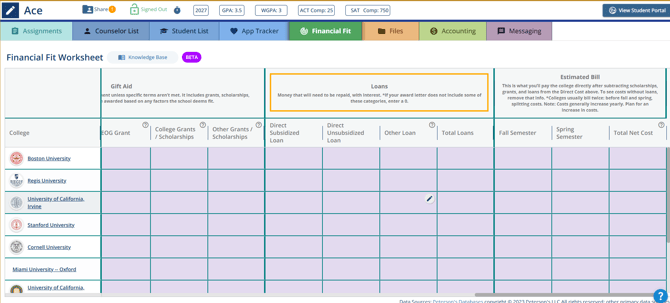
Tracks repayable aid:
-
Direct Subsidized Loan
-
Direct Unsubsidized Loan
-
Other Loans
-
Total Loans
Estimated Bill & Net Cost
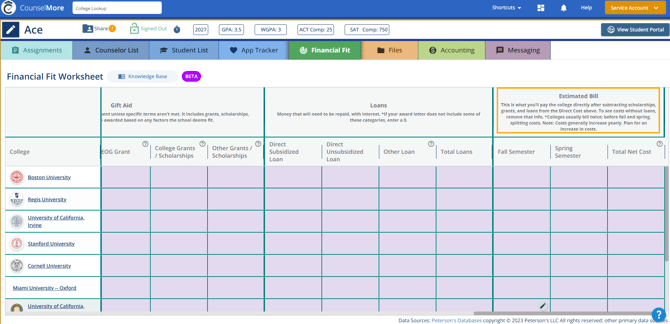 Summarizes estimated out-of-pocket costs:
-
Fall Semester Cost
-
Spring Semester Cost
-
Total Net Cost
Helpful Notes
-
Schools added to the App Tracker automatically appear in the Fin Fit tab.
-
All financial information shown in Fin Fit is pulled directly from the existing data in your CounselMore Data menu.
-
For each school, Fin Fit includes a direct link to the institution’s Cost of Attendance Calculator. This link is intentional. Most families plan to submit a financial appeal after receiving an offer letter, and schools typically require a screenshot of the Cost of Attendance Calculator results to support that appeal. That screenshot should be included with the appeal letter, which is why the calculator is easily accessible from Fin Fit.
-
Also included in the Fin Fit tab is a link to the state financial aid page. Every state offers some form of admissions-based or merit-based aid. Making this information readily available ensures students and families can fully understand—and plan for—all available financial options.
Important to Note:
- This tool aims to complement your counseling practice, not make financial guarantees or predictions.
- We’re not trying to be all things to all counselors; instead, we prioritize your needs and feedback.
- Our tools are here to help guide conversations, bringing clarity and ease to your student interactions.
- If something doesn't make sense you should tell us.
- Any information you enter into the tool will stay - feel free to actively use it with clients and actively send feedback as you interact with the tools.
- Your students can see the Fin Fit tab.
- If you do not want to see the tab now, navigate to Settings >> Tab Settings and turn the tab off.