
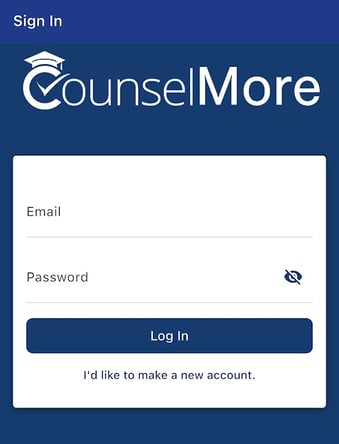
To get started with your CounselMore student app, download the College Tours by CounselMore app.
Just open the Apple App Store, search for “College Tours by CounselMore,” and tap Download.
Once the app is installed, you can access your student portal directly through mobile app.
A Streamlined Student Mobile Dashboard
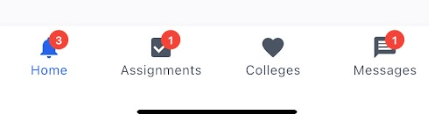
Once logged in, you’ll see four main tabs at the bottom of your screen:
-
Home
-
Assignments
-
Colleges
-
Messages
Each tab is designed to help you stay organized and informed with real-time updates.
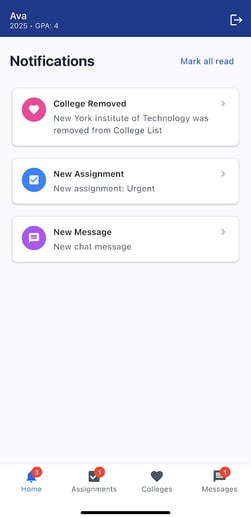
Home Tab: Your Notification Center
The Home page provides a quick overview of all your latest notifications, including:
-
Assignment updates
-
College list changes (what’s been added or removed)
-
Messages—emails and chat activity
Tap any notification and you’ll be taken directly to the correct tab where the update occurred.
Each tab also displays a badge count (1–9+) showing how many new notifications you have.
Assignments Tab: Track To-Dos & Completed Tasks
The Assignments tab keeps your workload organized with two sections:
-
To-Do Assignments
-
Completed Assignments
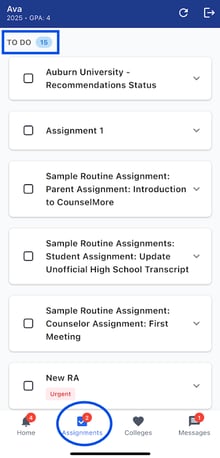
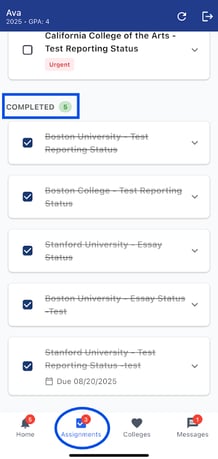
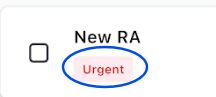
Each section shows the total number of tasks, and urgent assignments are clearly marked with an urgent badge.
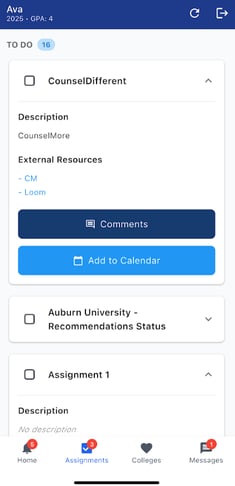
When you expand an assignment, you’ll see:
-
Task description
-
External links (if provided)
-
A Comments button to view or add comments
-
An Add to Calendar option
ℹ️ Once marked complete, tasks move instantly into the Completed section.
Colleges Tab: Your Full College List & App Tracker List
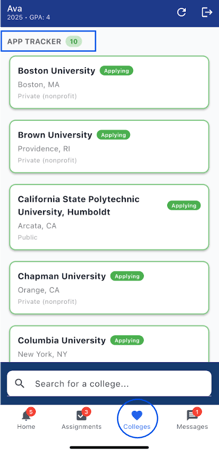
This tab includes:
-
App Tracker showing your favorited colleges
-
College List with all colleges added to your list
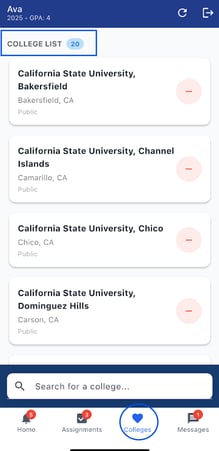
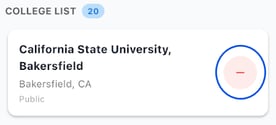
To remove a college from your list, click the red minus icon in the college list tab.
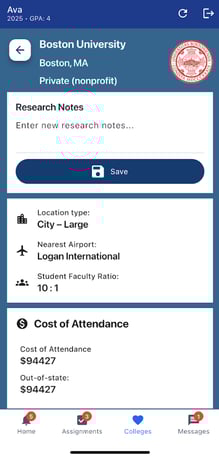
Tapping a college opens its full profile, including:
-
Research notes
-
Admission statistics
-
Test score ranges
-
Costs and financial data
ℹ️ Any Research Notes you type auto-save.
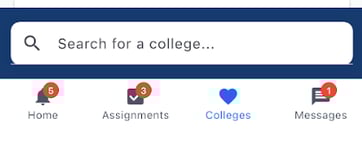
You can easily add a college by typing its name into the search bar—just start typing, and matching colleges will appear for you to select.
Whether you or your counselor make a change, the update appears instantly in your app. You can track up to 50 total colleges, and you’ll get an orange alert if you try to add a college that’s already on your list.


Messages Tab: Stay Connected With Your Counselor
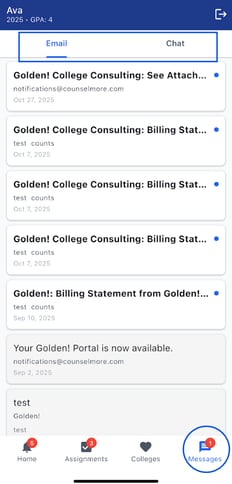
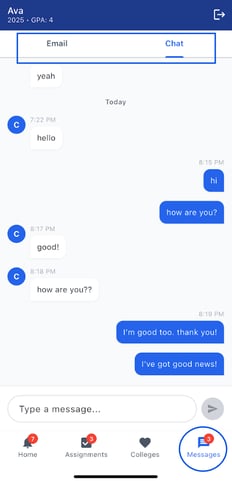
The Messages tab brings your email and chat into one convenient place. You can quickly scroll through your message history, see timestamps, and get new messages instantly—just like the web portal.
 To log out, click the logout icon located in the top-right corner of the screen.
Real-Time Sync Across All Devices
Whether you update something on the app or on the web portal, all changes sync immediately so students, parents, and counselors stay aligned throughout the college admissions journey.