
TIP: When a parent books for their student, ask that the student's name and email are entered first, as the person booking, and the parent's information second. CounselMore uses the first name and email to find or create the student. Here is an example of the booking form: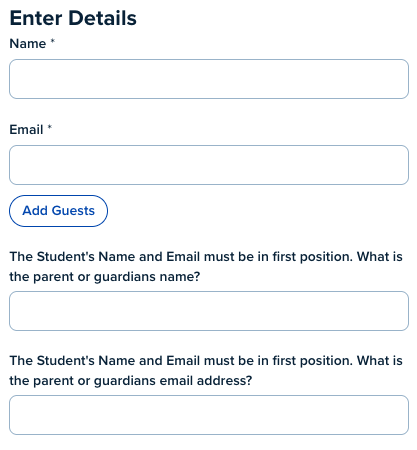
How bookings connect to CounselMore
- The email matches a student in your account: the meeting is added to that student's Assignments tab. Their status doesn't change.
- The email is new: CounselMore follows the setting for that meeting type (see below).
By default, every meeting type in your Calendly account creates a Prospect Student Record.
Choose what each meeting type does
Choose what each meeting type does
- Click your account name in the top right corner and select Settings.
- In the left menu, click Integrations > Connect Calendly Account.
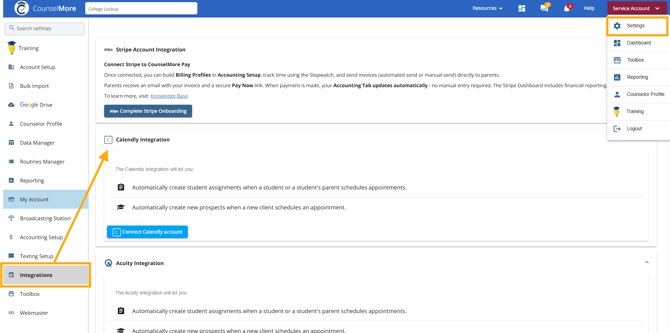
- The first time you set this up, click Set Up Meeting Types. CounselMore fetches the meeting types from your Calendly account.
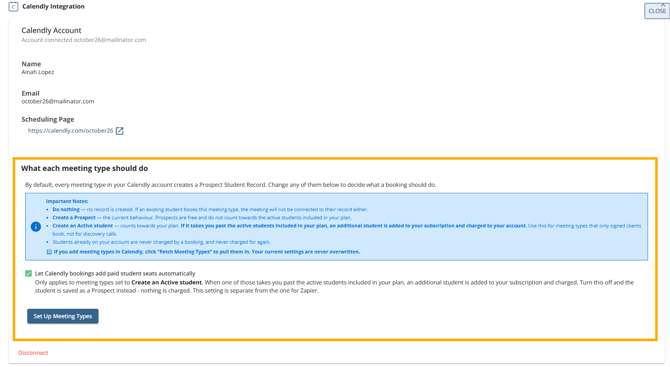
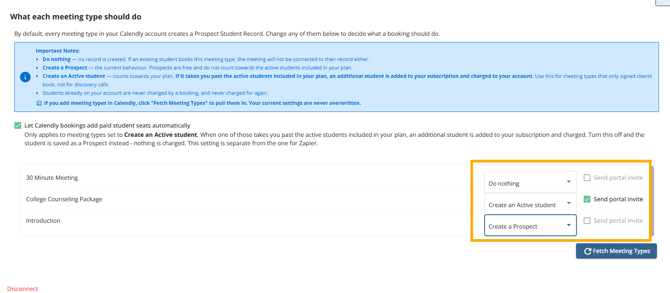
- Each meeting type is now listed by name. Next to a meeting type, open the dropdown and choose Do nothing, Create a Prospect, or Create an Active student.
- Repeat for each meeting type.
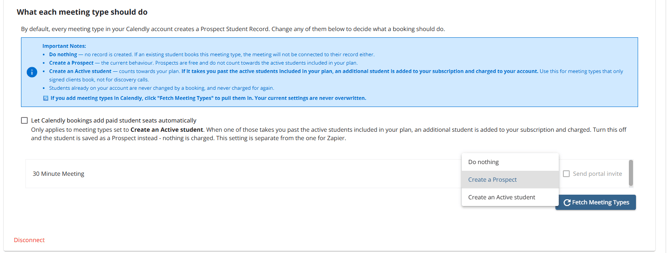
In this example, the 30 Minute Meeting does nothing, the College Counseling Package creates an Active student and sends a portal invite, and the Introduction call creates a Prospect.
What each option does
|
Option |
What happens when someone books |
Counts toward your plan? |
|---|---|---|
|
Do nothing |
No student record is created. If a student who's already in your account books this meeting type, the meeting is not added to their record either. |
No |
|
Create a Prospect |
A new Prospect Student Record is created at the top of your QuickList. This is the default. |
No. Prospects are free. |
|
Create an Active student |
A new Active student is created. |
Yes. See Let bookings add paid student seats below. |
⚠️ Important Notes:
- Do nothing — no record is created. If an existing student books this meeting type, the meeting will not be connected to their record either.
- Create a Prospect — the current behaviour. Prospects are free and do not count towards the active students included in your plan.
- Create an Active student — counts towards your plan. If it takes you past the active students included in your plan, an additional student is added to your subscription and charged to your account. Use this for meeting types that only signed clients book, not for discovery calls.
- Students already on your account are never changed by a booking, and never charged for again.
🔄 If you add meeting types in Calendly, click "Fetch Meeting Types" to pull them in. Your current settings are never overwritten.
Let bookings add paid student seats
Above your list of meeting types is the checkbox Let Calendly bookings add paid student seats automatically. It only applies to meeting types set to Create an Active student.
- Checked: When a booking takes you past the active students included in your plan, an additional student is added to your subscription and charged to your account.
- Unchecked: The student is saved as a Prospect instead, and nothing is charged.
Bookings follow whatever you choose here for meeting types set to Create an Active student. It's separate from the paid seats setting for Zapier in Account Setup > Counselor Portal Options > Zapier Settings.
Send a portal invite
Next to each dropdown is a Send portal invite checkbox. When it's checked, the student gets an email inviting them to their portal when the booking creates their record. It's only available for meeting types set to Create an Active student.
Add new meeting types
If you add or change meeting types in Calendly or Acuity, click Fetch Meeting Types at the bottom of the list to pull them in. Your current settings are never overwritten.
Meetings not showing on the Assignments tab?
- Check the meeting type. If it's set to Do nothing, meetings of that type are never added to a student's record.
- Check the email. The email used to book must match the student's email in CounselMore.
- Disconnect and reconnect. Click Disconnect at the bottom of the integration page, then connect your account again.
- Clear your browser cookies. If reconnecting doesn't help, clearing cookies may restore the sync.
FAQs
Do I need to change anything after this update? No. Every meeting type starts as Create a Prospect, which is how bookings already worked.
I'm already over my plan limit. What happens when someone books a meeting type set to Create an Active student? If Let Calendly bookings add paid student seats automatically is checked, each new Active student adds a paid seat. If it's unchecked, the student is saved as a Prospect and nothing is charged.
A student booked using their parent's email. What happens? CounselMore can't match the parent's email to the student, so a new record is created for that email (unless the meeting type is set to Do nothing). Ask families to enter the student's email first on the booking form.