
ℹ️ This feature is available as an add-on to Management Suite
This provides flexibility for students who may need support from multiple counselors due to different academic, personal, or career guidance needs.
How to Assign Multiple Counselors
You can assign multiple counselors to a student in two ways:
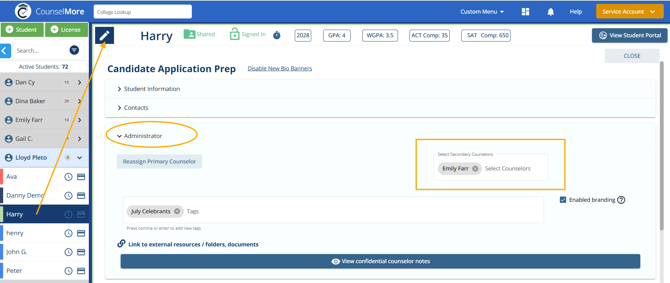
Option 1: From the Student Profile
-
Navigate to the student’s profile in CounselMore
-
Locate the Administrator banner section
-
Add one or more secondary counselors
Option 2: During Student Creation
You can also assign multiple counselors when creating a new student:
-
Go to Add New Student
-
Fill out the student’s information
-
In the Assign field, select one or more counselors
-
Complete the student creation process
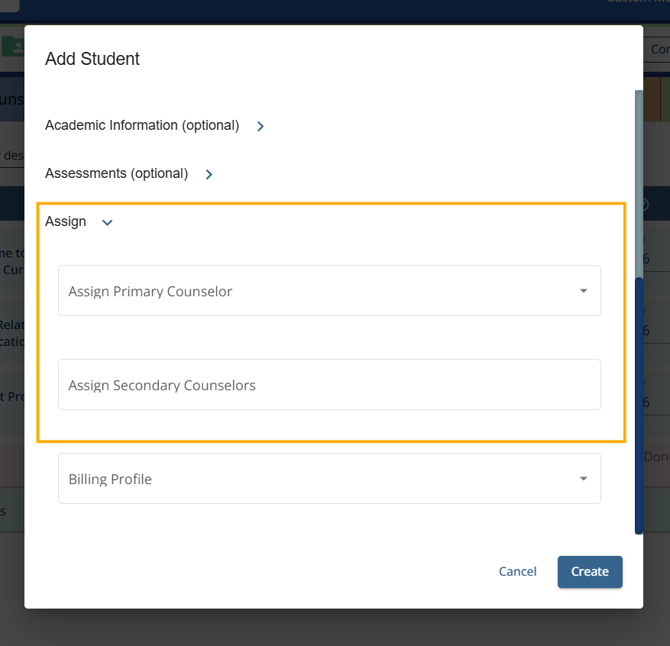
Once saved, all selected counselors will be assigned to the student and will have access to the student’s record.
How It Works
When a student is assigned secondary counselors, they receive full access to the student’s account, just like the primary counselor.
Secondary counselors can:
-
Assign and comment on assignments
-
Add, move, or delete colleges in the student’s college lists
-
Share files
-
Send emails
-
Use chat to communicate with the student, parents, or both
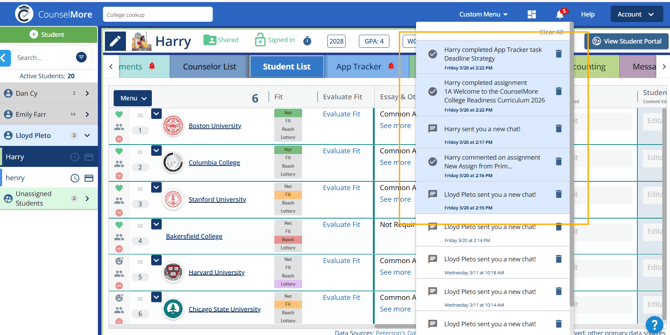
Notifications for secondary counselors include:
-
Chats between the primary counselor and student, parent, or guardian
-
Student comments on assignments
-
Chats with any counselor or group chat
- Assignments and Tasks completion
This ensures that secondary counselors are always informed and able to act promptly, maintaining consistent support for the student.
Messaging and Communication
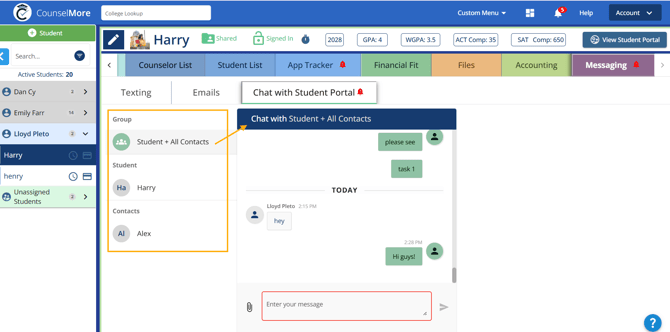
All assigned counselors can:
-
Send emails to the student and parents
-
Participate in one-to-one and group chat conversations
-
View the full communication history
This ensures that communication remains centralized and visible to all counselors working with the student.
Visibility and Access
-
Assigned counselors have full visibility into the student’s information
-
Any updates made by one counselor are visible to others immediately
-
This includes notes, messages, and activity
Notes:
-
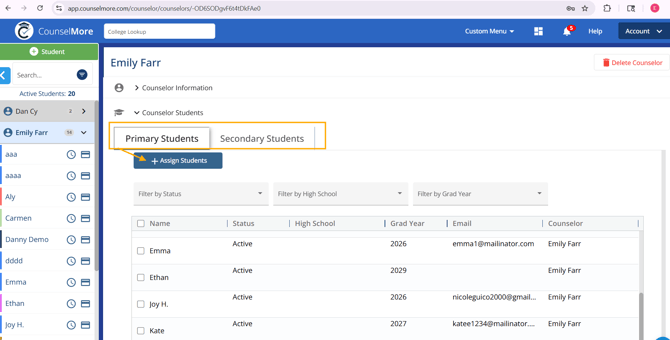
In the Counselor Form, counselors can see all their primary and secondary students. From there, counselors can Assign Students to Other Counselors:
-
-
Click/View the Primary Students or Secondary Students Tab.
-
Select the student(s) to assign.
-
Choose the counselor(s) to assign them to.
-
-
Only primary and secondary counselors can see the student’s account.
-
Admins or super users can also access all student accounts regardless of assignment.
This ensures that secondary counselors are always informed and able to act promptly, maintaining consistent support for the student while protecting student privacy.
Related Resource:
Multi License - Management Suite capabilities