
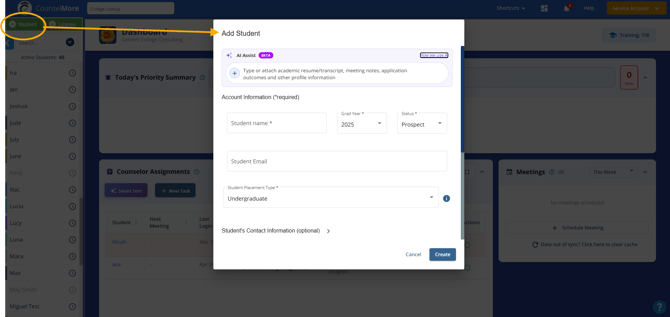
Step 1: Add a New Student
- Click “Add Student” from your Quick List
Step 2: Use AI Import (Upload or Type/Paste)
- Choose one of the following input methods:
Option A: Upload Document
- Upload a resume or other document
- AI will scan and extract structured data automatically
Option B: Type / Paste
- Paste notes, transcripts, or student details into the text box
- AI will parse the information and map it to the correct fields
Click Parse & Preview button to continue
You'll receive confirmation once student's info has been parsed.
Step 3: Review Extracted Results
Once the info has been pursed you'll see a new window with 'Data Extracted' near the top.
Instructions:
- Scroll down in this new window
- Review the extracted information
What to check:
- Student Info and Contacts
- Activities and awards
- Languages
- GPA
- Classes / Course Planning
- Test Scores
- Fit Assessments
If everything looks good, click the 'Create' button.
If there are fields that need updating, update in here and then click the 'Create' button.
Congratulations you just saved all that time!